

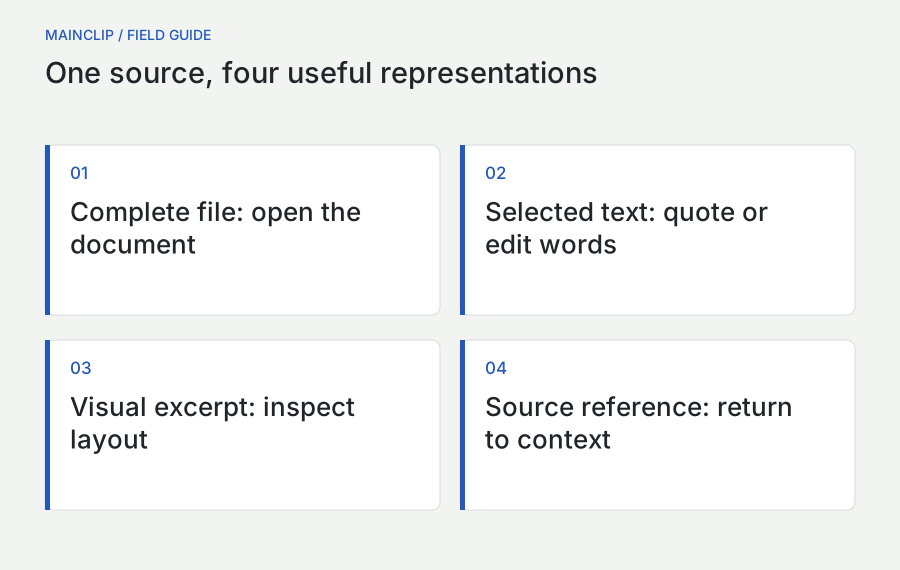
“Copy this PDF” can mean at least four different things: copy the file, copy a paragraph from it, copy a picture of part of a page, or save a reference so you can find the document later. Those actions produce different results. Many frustrating Mac workflows begin when the source provides one representation and the destination expects another.
This guide helps you choose and verify the right representation for files, images, and PDF material. It explains where MainClip's saved history and previews help, where you need a document reader, and when MainSnap can provide a useful visual excerpt. The aim is a working collection you can understand and reuse without confusing a thumbnail with a document, a path with a portable attachment, or recognized text with checked evidence.
Choose the representation before copying
Ask what the recipient or destination must be able to do. If they need to open the complete document, send or attach the document. If they need a short sentence in a note, copy the relevant text and preserve its source context. If they need to see a layout issue, an annotated image may communicate it better. If they only need to find the latest controlled document, an authorized link may be more appropriate than another detached copy.
These choices are not interchangeable. A screenshot cannot provide the same editing or navigation experience as the source document. A local file path does not automatically work on another person's Mac. A copied paragraph may omit the qualifications on the next page. Choose the smallest representation that carries the information needed for the task, while preserving access to the original when context matters.
| What you need | Useful representation | What to verify |
|---|---|---|
| The complete document | Actual file or approved document link | Correct version, access, and completeness |
| A sentence for a draft | Selected text with a source locator | Characters, context, and attribution |
| A visible design issue | Image excerpt with explanatory annotation | Readable detail and sufficient context |
| A future reference | Title, source identity, location, and notes | Whether the location remains accessible |
| Words from a scan | Recognized text checked against the image | Recognition accuracy and reading order |
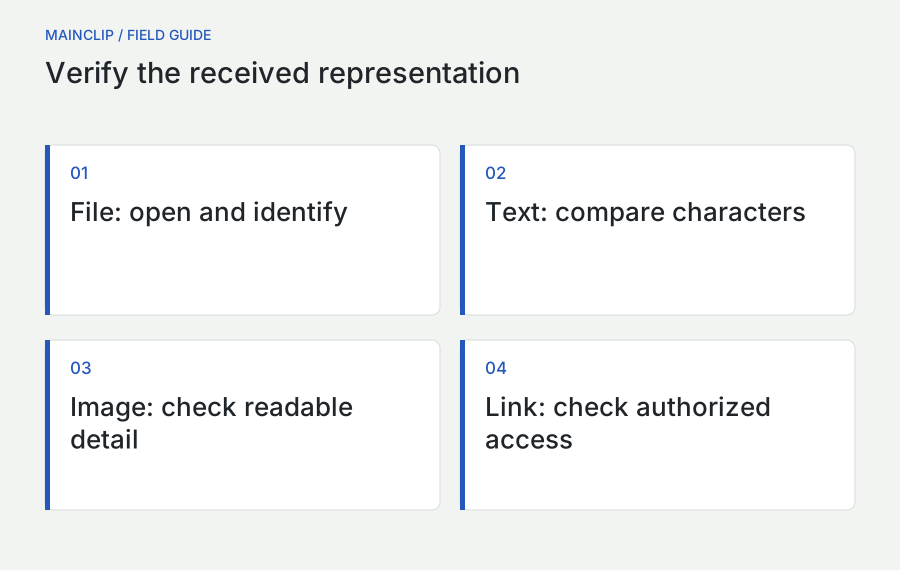
Before a large transfer, test with a harmless small example. Copy one file, one short passage, or one image region and inspect the destination. This is faster than assembling a large packet and discovering that the receiving system accepts only a different type of input. Keep the original untouched while testing.
Distinguish a file object from text about a file
A file selected in Finder is not the same thing as its name typed into a message. The name describes the object; it does not contain the object's data. Similarly, a path such as a location in your home folder identifies a place in your environment. It should not be treated as a universal link that a colleague can open on another machine.
A destination can interpret copied file material in different ways. A file-aware application may accept an attachment. A text-only field may reject it or receive a textual representation. Do not judge the result solely by whether a recognizable filename appears. Open or inspect the received item to establish what actually arrived.
Use three precise verbs in your own notes: reference, copy, and export. Referencing identifies where something lives. Copying creates or transfers a representation. Exporting creates a file according to a chosen format and options. A workflow can involve all three, but separating them prevents an instruction like “put the PDF in the notes” from hiding an important decision.
For a team handoff, specify the expected outcome. “Attach the reviewed PDF so it can be opened without my local folder” is clearer than “paste the path.” “Link the current approved document” is clearer than “send a copy” when the document is expected to change. The right instruction depends on whether the recipient needs a fixed snapshot or the maintained source.
When using a clipboard manager, inspect the clip's type and intended action. A saved text snippet containing a path and a saved file clip may look similar in a compact list while behaving differently. Retrieval should end with a check in the real destination, not with the assumption that selecting a familiar name completed the transfer.
Understand what MainClip keeps for files and images
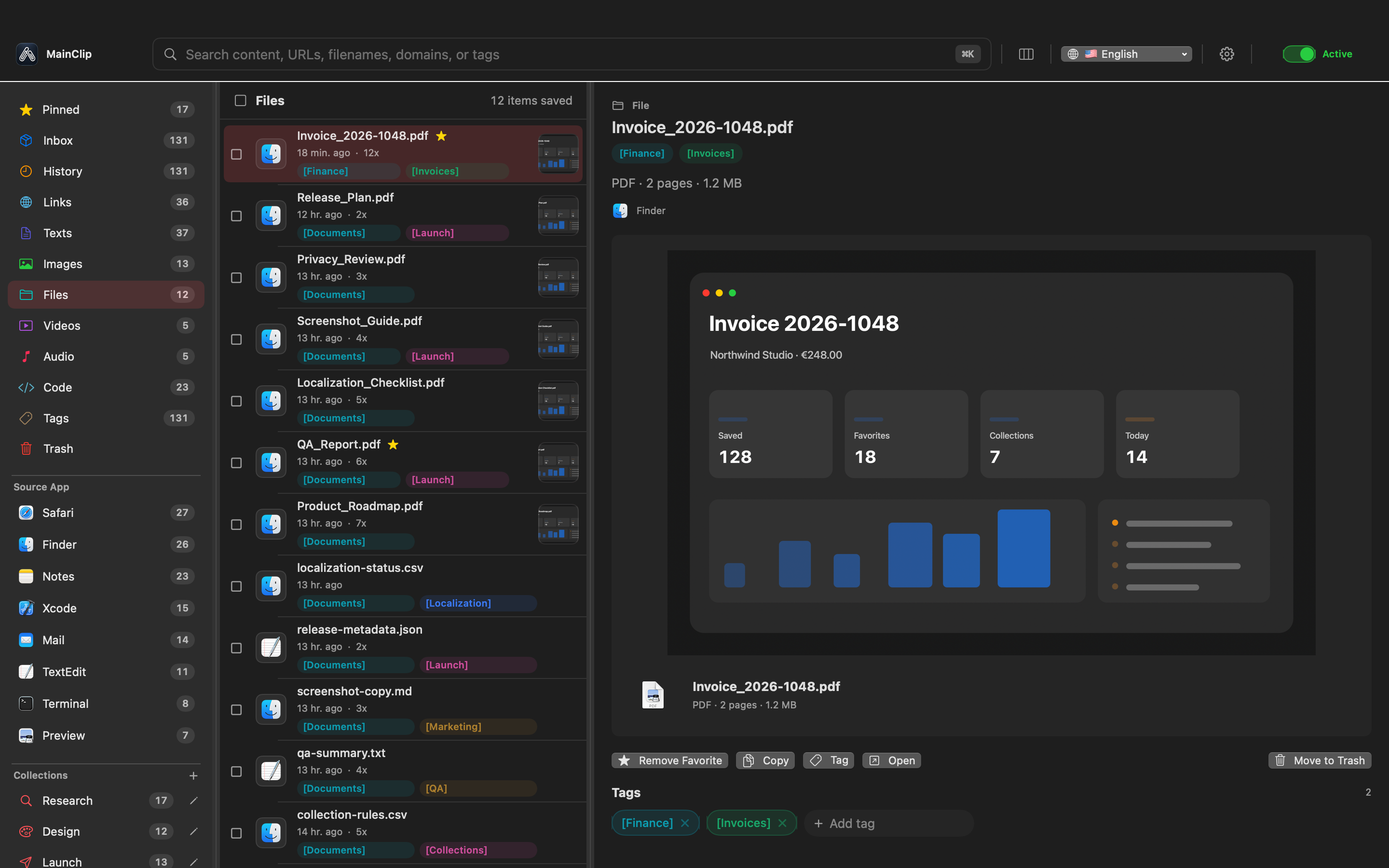
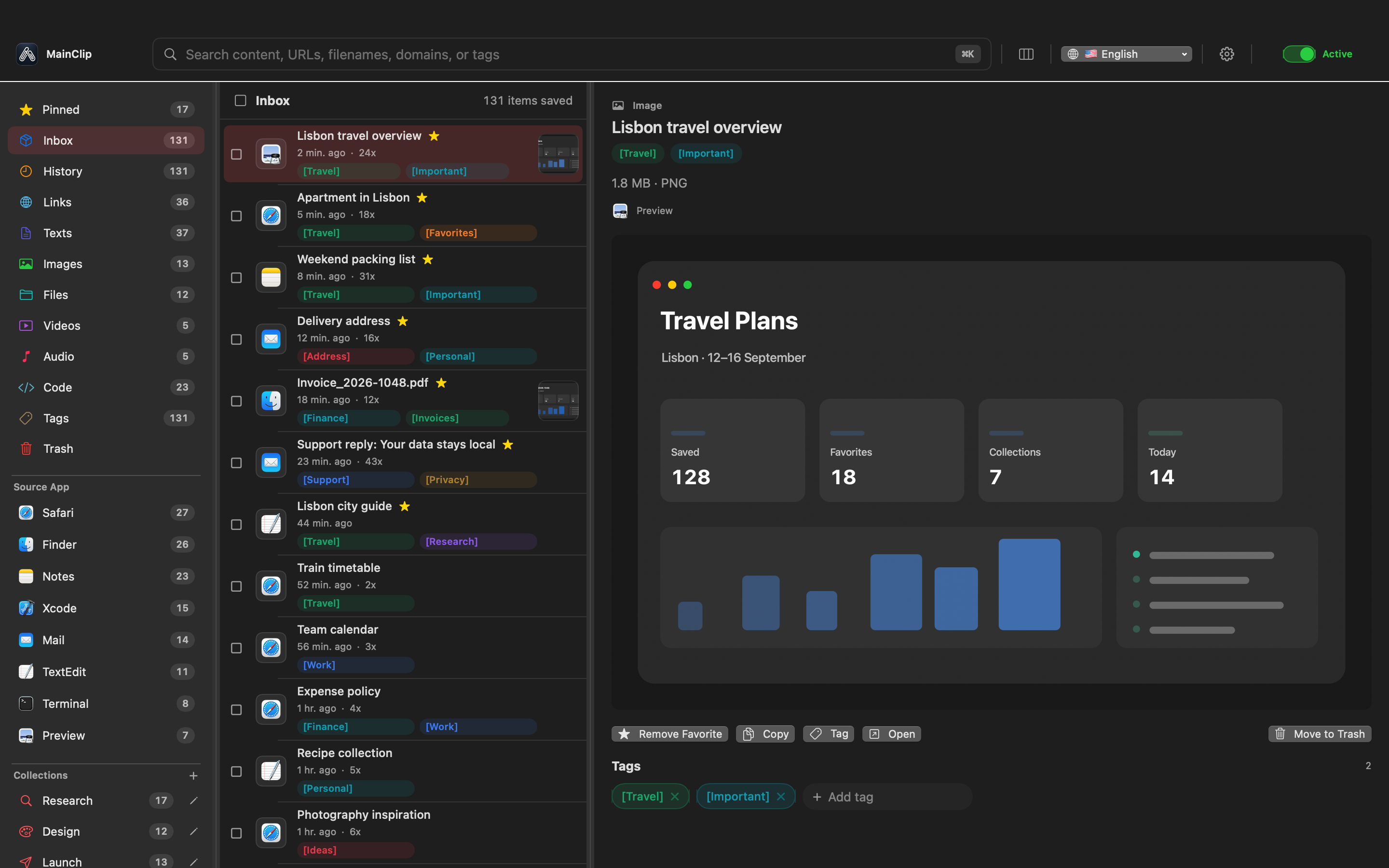
MainClip classifies copied material into types such as text, links, images, files, audio, video, and code. For accessible regular files it captures successfully, its attachment storage creates managed local copies. It also stores image data copied directly to the clipboard. These saved items support retrieval, but the collection should remain a working aid alongside your authoritative project files.
A managed copy is not a live synchronization relationship with the original document. If the source changes afterward, do not assume the older saved clip has changed with it. Check the version you are retrieving. For important work, identify the approved source explicitly and choose whether you need that current source or an earlier snapshot.
Not every object visible in Finder is a regular file that should be assumed to behave identically. Folders, application packages, aliases, symbolic links, unavailable files, and restricted locations can introduce different behavior. Test the actual item and use an appropriate file-management or sharing workflow when a clipboard capture is unsuitable. Avoid general claims that every visible object becomes a portable archive automatically.
MainClip generates thumbnails for supported images and a first-page preview for a PDF. That helps recognize a file visually. It does not mean the complete PDF has been analyzed, that every page is indexed, or that text inside a scan has been recognized. Search expectations should follow the actual stored information.
When a saved file matters, open it and inspect a meaningful part of its contents. A recognizable cover page is not enough to distinguish two revisions with identical covers. Check a revision marker, a relevant section, or a known change. Treat the preview as a route to the content rather than the final proof of identity.
Build a useful reference entry
A useful PDF reference needs more than a filename. Record the document title, responsible author or organization, version or date when available, source location, and the page or section relevant to your task. Add a short note explaining why you kept it. These details belong in a project document or source register that remains meaningful outside the clipboard history.
Give the document a short project identifier if you will refer to it repeatedly. For a fictional workshop project, “WS-D04” could identify the venue guide. The exact convention is less important than consistency. Connect copied excerpts and screenshots to that identifier so their relationship survives when they are moved into another document.
Record missing information honestly. A downloaded PDF may have no visible revision date. Write that limitation rather than deriving a publication date from the time you downloaded it. A filename containing “new” is not a reliable version statement. If a date matters to the decision, look for an authoritative source or ask the document owner.
Keep the reference note short enough to maintain. A few well-chosen fields can be more useful than a large form with mostly blank cells. The essential test is whether you or another authorized reader can return to the right document and understand why a particular excerpt was used.
For formal research, connect the entry to your source register and citation workflow. The source-tracking guide explains how to distinguish source identity, evidence, and interpretation. A clipboard app helps retrieve material, but it should not be expected to infer missing bibliographic context from a cover image.
Copy text from a PDF deliberately
Apple's Preview documentation distinguishes text selection from rectangular image selection. It describes using the Text Selection tool to copy words, and a rectangular selection to copy a page region as a graphic. This distinction is useful when a paste produces a picture instead of editable text. See Apple's PDF selection instructions.
Start with a short passage containing ordinary words and punctuation. Paste it into a disposable text document and inspect the result. Look for missing spaces, unusual line breaks, repeated headers, and characters that appear similar. A passage can look correct at a glance while containing a wrong dash, digit, or punctuation mark that matters in its intended use.
For a long excerpt, check the beginning and end against the source. Confirm that the selection did not cross into an unrelated column or skip a line. Copy only the amount needed for the task, and preserve the page or section locator next to it. This reduces both verification work and the risk of separating a statement from its qualifications.
When you want your own summary rather than a quotation, read the passage, write the meaning in your own words, and compare the summary with the source. Do not present lightly edited copied text as an independent analysis. Keep a clear distinction in your notes between the source's wording and your explanation of its relevance.
If the destination needs a fixed visual layout, text extraction may be the wrong representation. A small graphic excerpt can preserve the arrangement, while a separate written explanation makes it understandable and searchable. Choose that combination intentionally rather than treating the image as a failed attempt to obtain text.
Handle columns, tables, and reading order carefully
A table that looks clear on a PDF page can become confusing when pasted into a linear text field. The visual arrangement carries relationships that ordinary text may not preserve. Before copying a large table, choose two rows and a few columns as a test. Inspect whether each value remains associated with the correct label.
Do not rely on the total number of characters as a quality check. The same characters can arrive in the wrong order. Read the first row as a sentence: which item does this value describe, in which unit, and under which heading? If the relationship is unclear, reconstruct a small table deliberately or use a supported structured source when available.
For multi-column prose, test where the selection moves at the end of a line. A copied excerpt may mix columns or include sidebars. Compare the pasted sequence with the source paragraph by paragraph. If you are quoting a passage, preserve the original meaning and indicate any intentional omission according to the style appropriate for the work.
For numbers, verify the labels and units as well as the digits. A correct number under the wrong heading is still a serious transcription error. Use a separate check for totals, dates, and identifiers when they drive a decision. The clipboard can transport what was selected; it cannot tell you whether the selection preserved the table's meaning.
If a table must be shared visually, include enough of its heading and explanatory notes to make it interpretable. A tightly cropped group of numbers without units is a poor reference. Add a concise caption describing the source and scope, and provide access to the complete document when the recipient needs to inspect the surrounding context.
Treat scans and OCR as a conversion workflow
When words are visible but cannot be copied as text, first check the selection mode and the document's permitted operations. Apple notes that an incorrect selection tool or a password requirement can prevent text selection in Preview. Use the authorized access route described in Apple's troubleshooting guidance; do not interpret a restriction as something to bypass.
If the relevant material is an image, text recognition may be appropriate. MainSnap can recognize text locally from a captured image. Capture the relevant region clearly, run recognition, and inspect the output before using it. This is a separate conversion step. MainClip can retain copied text afterward, but it does not perform the recognition itself.
Use a verification pass tailored to the material. In ordinary prose, check missing words, paragraph order, and punctuation. In technical material, inspect identifiers, symbols, capitalization, and units. In a table, verify the relationship between labels and values. Recognition that is adequate for finding a paragraph may still be inadequate for quoting it precisely.
Do not overwrite the source image with the recognized text. Keep the image or authorized document available as the reference against which corrections were made. Label the text as checked or unchecked in your project notes. This prevents a rough extraction from being promoted to a reliable transcript merely because it is now easy to copy.
For a large or complex document, use a document-level workflow appropriate to that task. A series of small screenshots can be useful for selected excerpts, but it is not automatically a good way to process an entire book, preserve page structure, or create an accessible replacement. Match the conversion method to the actual deliverable.
Search the right layer of information
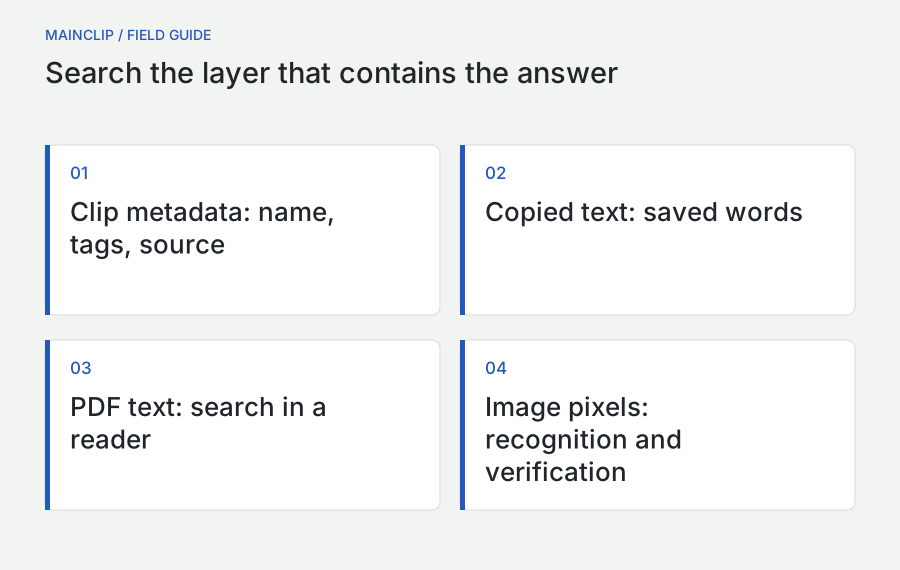
There are several possible search targets: the file's name, the metadata stored with a saved clip, the text copied from the document, the PDF's searchable text, and words visible only inside an image. A search can fail because you are asking the wrong layer, even when the material is present and healthy.
MainClip can search stored clip information such as text content, filenames, URLs, domains, source applications, and tags. If you saved the PDF as a file but never copied a particular paragraph into searchable clip text, do not assume that paragraph is part of MainClip's search index. A first-page thumbnail does not turn all pages into searchable text.
For text within a PDF, open the document in a suitable reader. Apple describes Preview's search field and options for finding words or phrases and navigating results. See Apple's PDF search documentation. Search there when the question concerns the document's contents rather than the history entry that points to it.
When you cannot remember the filename, use clues that the collection actually contains: a source application, a project tag, a distinctive title fragment, or the period when you collected it. Once you find the candidate file, inspect it. Do not broaden a search until it returns something plausible and then assume the first plausible item is the right version.
If the words exist only in a scan, use an authorized text-recognition workflow and verify its output. Keep the resulting text linked to the document identity. Otherwise, successful extraction can create a new problem: searchable words with no reliable route back to the page that gave them meaning.
Distinguish an image from an image file
An image copied directly from an application and an image file copied from Finder may reach a destination through different routes. One may behave like inline picture content; the other may behave like an attachment. Neither is universally better. Choose according to whether the destination should display the picture immediately or preserve a named file for later use.
In MainClip, a directly copied image is stored with its image data, while a captured file can retain a filename and file-backed behavior. A compact preview may make the two look alike. Inspect the item and test the action you need. If the destination requires an uploaded file, use its upload route rather than expecting every inline paste to create the same result.
Check dimensions and detail after transferring. A small preview can conceal softness that becomes obvious in a document or presentation. Open the actual image and inspect text or fine lines at the intended display size. Avoid using a screenshot of a thumbnail when you have access to the original image; that extra conversion usually gives you less useful detail to work with.
When you need another file format, make a deliberate export. Apple documents image conversion through Preview's Export command, with format-specific options. Consult Apple's image-conversion instructions rather than merely changing a filename extension. Save the result separately and inspect it before replacing anything.
For a visual excerpt from a PDF, a descriptive filename and caption can preserve context that raw image data does not carry clearly. Include a project identifier, a short purpose, and a version marker if needed. Keep private source details out of filenames that will be visible to external recipients.
Make version identity visible
A history entry is a record of collected material, not necessarily the current authoritative version. This matters when a policy, diagram, or draft changes after you copied it. Before reusing a saved file, ask whether the task needs the snapshot you collected or the latest approved document. Both can be legitimate, but confusing them causes avoidable mistakes.
Use names that communicate purpose and state. “Workshop-floor-plan-reviewed” is more informative than “image-new.” If dates or revision numbers are part of the document owner's convention, preserve them consistently. Do not invent an official revision number because your local copy needs a name; distinguish your own collection date from the source's version.
For a small collection, a project note can identify which file is authoritative and which are supporting snapshots. For a shared project, use the team's established document location and approval process. A personal clipboard collection should not silently become the source of truth for a team that does not know it exists.
When comparing versions, inspect the part that matters to the task. Identical cover pages do not prove identical content. A changed filename does not prove a meaningful revision. Look for an actual document revision statement or the specific change under review. Record the result in ordinary language so a future reader understands why you chose one copy.
If you discover that an old saved item was used by mistake, correct the destination and record the source of the confusion. Improve the naming or reference note that failed. Deleting every older clip is not always necessary; making the distinction between historical evidence and current instructions explicit may be the better correction.
Handle external, temporary, and downloaded material
Files arrive from many places: Downloads, a removable drive, a shared location, a browser's temporary view, or another application's export folder. Before relying on a copied item, establish where the actual document exists and whether you can open it. A visible preview inside an application does not always tell you how the underlying file is stored.
For a downloaded reference, open the completed download and verify the document's identity. Do not collect an unfinished file or a browser loading screen as if it were the source. Move important authorized material into the project's normal file arrangement when appropriate, keeping its reference information intact.
For an external drive, test the file while the drive is connected and note whether your intended workflow requires continued access to that source. A successfully managed MainClip attachment can provide a local saved copy, but verify the actual captured item before depending on that independence. Do not remove the only original merely because a thumbnail appeared in history.
For shared files, distinguish a local copy from the maintained shared version. A detached copy may remain available when the shared source changes, which can be helpful for a historical record. It can also become outdated. State which role the local copy serves and avoid sending it as the current source without checking.
For temporary exports, save an intentional working copy before closing or cleaning up the application that produced them. Use a clear folder and filename. The more important the file is, the less its continued availability should depend on remembering which temporary export window happened to remain open.
Prepare a review packet that carries enough context
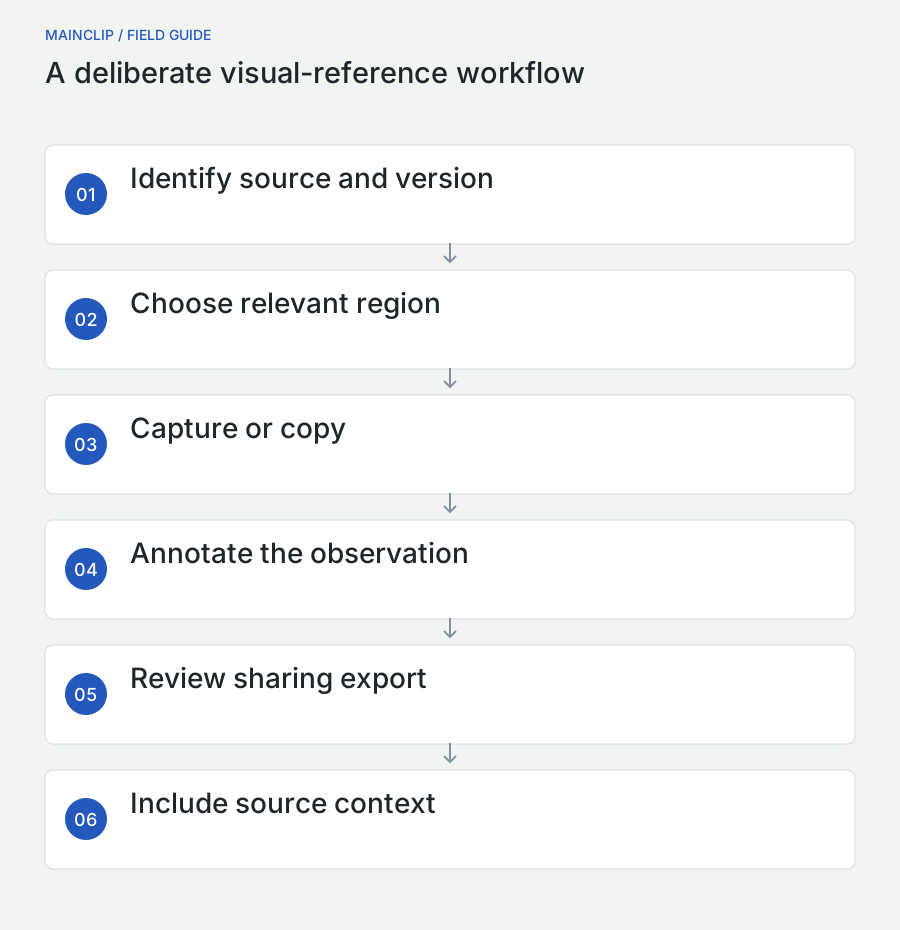
A good review packet gives the recipient exactly what they need to evaluate the issue. Start with a short written question, identify the relevant document or version, and include the smallest useful excerpt or attachment. Explain what feedback you want. “Check whether this label is understandable” is more actionable than a message containing six unexplained screenshots.
Choose between an attachment and a link according to the review's purpose. An attachment preserves a particular snapshot for discussion. A maintained link can direct the reviewer to the current working document, provided they have access. If a discussion depends on a fixed state, record that state so later changes do not make earlier comments impossible to interpret.
For a PDF excerpt, include the page or section locator and enough surrounding context to prevent misunderstanding. If you copy a table, retain its heading, units, and relevant notes. If you capture an interface, include the state needed to explain the issue without exposing unrelated windows or accounts.
MainSnap can help create annotated visual excerpts. Use arrows and numbered markers to direct attention, then write the actual request in text. A marker should clarify the review, not replace the explanation. Before sharing, inspect the exported image as the recipient will see it, including readability at a normal size.
MainClip can help assemble the accompanying text and retrieve the selected references. Keep the final packet in the communication or project system where the review belongs. Sending a complete clipboard history is neither necessary nor a useful way to convey the reasoning behind a few selected items.
Make excerpts understandable without relying only on pixels
A picture of text can be convenient for visual discussion, but it is a poor substitute for editable words when the recipient needs to search, quote, or adapt them. Provide the key instruction or question in real text alongside the image. Use the screenshot to show the layout, state, or exact visual issue that the text alone cannot convey.
A caption should say what the reader should notice. “The prerequisite appears below the action that needs it” gives the image a purpose. “Screenshot” does not. If the figure compares two versions, label which is earlier and which is proposed. Do not rely on color alone to convey that distinction; use explicit words or numbered markers as well.
For a long PDF reference, include a useful locator rather than asking the recipient to inspect every page. State whether the locator is a printed page label or the reader's page position when that distinction matters. A concise description of the section can help if the two numbering systems differ.
When transcribing a short passage for accessibility or convenience, check it against the source and make clear whether it is an exact quote or a summary. A manually corrected OCR result can be useful, but the correction process should not quietly alter meaning. Preserve unusual names, identifiers, and qualifiers that matter.
Test the packet on a smaller window or ordinary display size. If the explanation only works when the image is enlarged dramatically, simplify the crop or split the figure into focused details. The goal is an understandable review, not the maximum amount of information compressed into one picture.
Review privacy and permissions before sharing
A file or screenshot can reveal more than the passage you intended to discuss. Check visible names, email addresses, account details, background windows, document comments, and filenames. Choose the sharing copy according to the audience. A private internal document may need an approved excerpt rather than distribution of the whole file.
Respect document access controls and organizational rules. If a PDF requires authorized credentials or the owner restricts copying, use the approved route or request a suitable version. Do not frame text extraction as a way to evade a restriction. The workflow should preserve useful information within the access you are allowed to have.
For an image that needs redaction, prepare a flattened, reviewed export. In MainSnap, editable captures retain the original image, so the editable source should not be treated as a sanitized sharing file. Inspect the export after applying solid redaction and ensure that the remaining context still communicates the intended point.
Keep sensitive source files and safe sharing derivatives distinguishable. A clear suffix such as “review-copy” can help, but the name alone is not a privacy check. Open the exact file you are about to send. Do not rely on a neighboring file's appearance or on a memory of which export was last modified.
For routine troubleshooting, use synthetic material whenever it can reproduce the problem. A dummy PDF with a few invented lines can demonstrate a paste issue without exposing a customer document. The smaller the sample, the easier it is for another person to inspect the behavior and the less unrelated information must leave your workspace.
Troubleshoot by the exact symptom
| Symptom | First useful check | Likely next route |
|---|---|---|
| A filename appears instead of an attachment | What representation did the source copy? | Use the destination's file attachment or import control |
| A PDF passage pastes as a picture | Text selection versus image selection | Select actual text or intentionally use a visual excerpt |
| The thumbnail opens no usable file | Availability of the captured file and any error | Recover the source or restore a verified archive |
| Searching a phrase finds no PDF clip | Whether the phrase is stored as searchable clip text | Search inside the actual PDF or use verified recognition |
| A colleague cannot open a pasted path | Whether the path is local to your Mac | Send an authorized file or accessible document link |
| The wrong revision was reused | Source identity and actual content changes | Correct the destination and improve version labeling |
For a general copy-and-paste failure, use the controlled tests in the Mac copy-and-paste troubleshooting guide. For this file-specific workflow, keep the test narrow: one harmless file, one source, one destination, and one expected result. A successful text test does not prove that a destination accepts file attachments.
Do not repair a missing source by editing internal attachment paths or renaming random files inside an app's storage. Preserve the working originals and use supported restore or recapture actions. If the problem persists, report the item type, source location category, operation, and error to support using a synthetic example where possible.
Back up the working collection without confusing it with the project archive
A project archive should preserve the authoritative documents and context needed to understand the finished work. A clipboard backup preserves the saved collection that supported your workflow. Both can be useful, but they answer different recovery questions. Keep important project files in their proper location even when MainClip has a convenient saved copy.
MainClip's local backup package includes clip records, collection information, and attachments it can archive. Verify representative file restoration by opening the actual restored documents, not just recognizing their thumbnails. The backup and migration guide provides a full recovery procedure and explains why a readable export is a different artifact.
Before cleaning up a project, identify which saved file versions still have a purpose. Keep approved reusable material and meaningful historical evidence according to your needs and applicable rules. Remove temporary duplicates through the supported application controls rather than manually deleting internal managed files.
Remember that deleting a clip, deleting an original project file, and retiring an older backup are separate actions. Do not assume one automatically accomplishes the others. Review each location intentionally, especially when sensitive material is involved. A clear inventory helps avoid both accidental loss and forgotten copies.
End cleanup with a retrieval check for the material you decided to keep. Search for a representative file, open it, and verify the reference note. A tidy-looking list is useful only if the remaining items still support the work for which they were retained.
Check the received item, not just the sending action
A successful sending action is only one half of a transfer. The receiving application can alter presentation, create an attachment, or show a preview that conceals missing context. For an important handoff, inspect the received representation through an appropriate draft or authorized test route. Do not send private material to an unrelated account merely to create a test.
For an attachment, verify the filename, version, and a meaningful part of the opened contents. For a visual excerpt, inspect readability at the size the recipient will normally see. For copied text, compare punctuation, line order, and any identifiers that drive the task. For a document link, verify access using an approved method that reflects the recipient's permissions rather than only your own logged-in session.
Use a short acceptance statement in the project note: “Reviewed PDF attached and opened; entrance paragraph checked; source version recorded.” This describes completed observations. “Sent successfully” describes only an action. The more consequential the handoff, the more useful it is to distinguish the two without turning the process into a burdensome checklist for every casual paste.
If the recipient reports a different result, ask what they received and what they attempted to do with it. A file that opens correctly but cannot be edited may be the wrong representation for the requested task. A readable image may be unsuitable for extracting a long table. Solve the mismatch by returning to the intended outcome, not by repeatedly sending the same object under a new name.
Keep the accepted sharing copy until the review or handoff is complete, according to the project's retention needs. That makes later comments interpretable even if the working source changes. Once the task is closed, retain the authoritative record and remove unnecessary temporary derivatives through the normal cleanup process.
Three worked examples
Example one: a workshop coordinator assembles a venue note
A fictional coordinator receives a venue PDF and needs to tell colleagues where to enter the building. She does not send a screenshot of the entire document. She records the PDF's title and version, copies the relevant instruction as text, and checks the wording against the source. She adds a small visual excerpt showing the entrance location, with a clear caption.
MainClip helps retrieve the copied instruction while she assembles the note. MainSnap helps mark the entrance on the image. The final message includes the approved document link for anyone who needs the complete guide. The coordinator checks that the link is accessible to the recipients and that the visual excerpt does not expose unrelated contact details.
The result uses three representations deliberately: checked text for the instruction, an image for spatial context, and a source reference for the whole document. None is expected to replace the others. If the venue guide changes later, the recorded version makes it possible to identify which note needs review.
Example two: a designer reviews two document revisions
A designer finds two saved PDF clips with similar names and identical cover pages. One was collected before a wording change. Instead of choosing the most recently displayed thumbnail, she opens both files and checks the paragraph under review. She records the difference in the project note and labels the approved source clearly.
For the review, she creates focused visual excerpts and writes a short explanation of the change. She does not present the older copy as the current authoritative file. The source documents remain available for inspection, while the sharing images focus attention on the relevant passage. Her clipboard history remains useful without becoming an unofficial version-control system.
Example three: a researcher needs words from a scanned page
A researcher can see a short passage but cannot select it as text. After checking the document's allowed operations and selection mode, he uses an authorized image-based extraction workflow. He captures only the needed region, recognizes the text in MainSnap, and compares the output against the image. Two ambiguous characters require correction.
He stores the checked excerpt with the source identifier and page locator in the project notes. MainClip makes the resulting text easy to retrieve during drafting, but it is not credited with performing OCR or validating the quotation. The source image remains the reference for the transcription, and the final draft uses only the portion needed for the argument.
Practice with a small verification set
Create a harmless test folder containing a short text document, a PDF with selectable text, and an image. Give each a distinctive invented label. Copy and retrieve them through the workflow you intend to use. Inspect what the destination receives: a file, inline content, a picture, or text. Record the result without assuming all three behave alike.
Next, copy a short passage from the PDF and a rectangular visual excerpt from the same page. Paste both into a draft and compare what you can do with them. Can you edit the words? Can you see the original layout? Which representation is more useful for a quotation, and which is more useful for a visual review? This exercise makes the trade-off concrete.
Finally, create a reference note that would let another authorized person find the source and understand the excerpt. Include identity, version where available, locator, and purpose. Close the original windows and try to reconstruct the workflow from that note. Any missing step is an opportunity to improve the record before a real deadline.
A dependable file-and-PDF workflow makes the transferred object, its source, and its intended use explicit. MainClip can reduce the effort of retrieving saved material; Preview and other document tools let you inspect the actual source; MainSnap can clarify selected visual details. The final check remains simple: does the recipient have the right representation, the right version, and enough context to use it correctly?