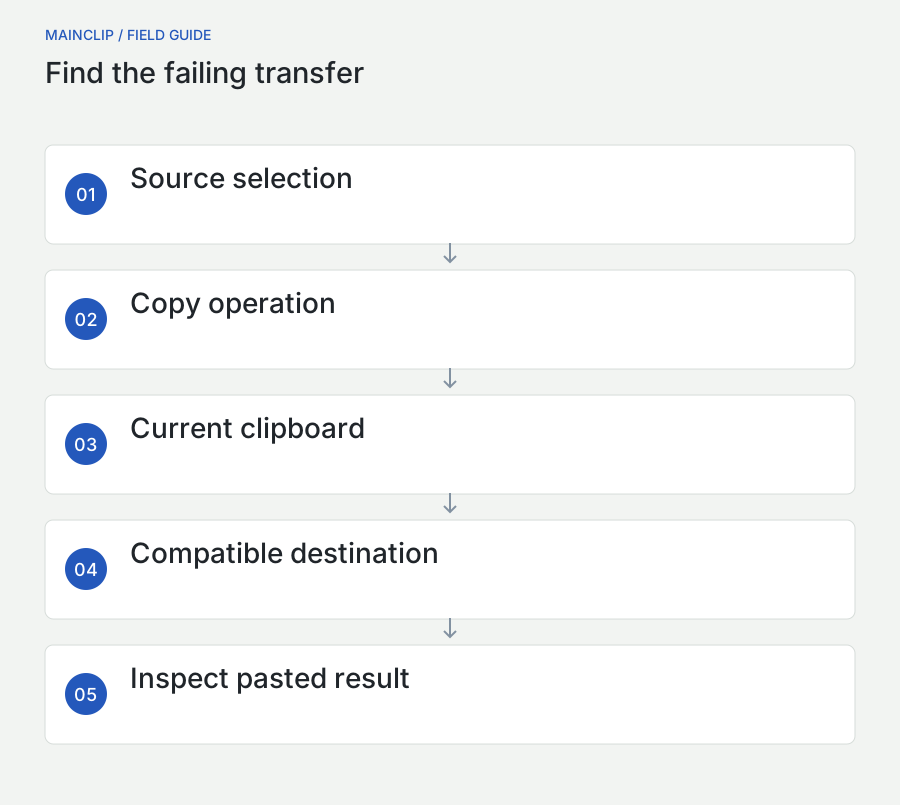
A copy-and-paste problem can interrupt an entire afternoon while producing almost no useful error message. A button appears to work, the destination stays empty, and the next attempt inserts something copied ten minutes earlier. The temptation is to change settings at random. A better response is to identify which part of the transfer failed: selecting the source, copying it, choosing a compatible destination, or retrieving an older item.
This guide provides a repeatable diagnostic method for a Mac. It covers ordinary text, formatted content, images, files, browser editors, clipboard history, and transfers between Apple devices. The exercises use harmless sample material so that troubleshooting does not expose a password or damage a document. MainClip appears where its local history and capture settings are relevant; it cannot repair every application's paste behavior or recover material that was never saved.
Identify the failure before choosing a fix
Describe the observed result in one sentence. “Copy and paste is broken” leaves too many possibilities open. “Text copied from the browser pastes into a local document, but not into our ticket form” narrows the problem immediately. So does “ordinary paste works, but today's copies do not appear in my history.” The first symptom points toward a destination-specific issue. The second concerns history capture rather than the basic transfer.
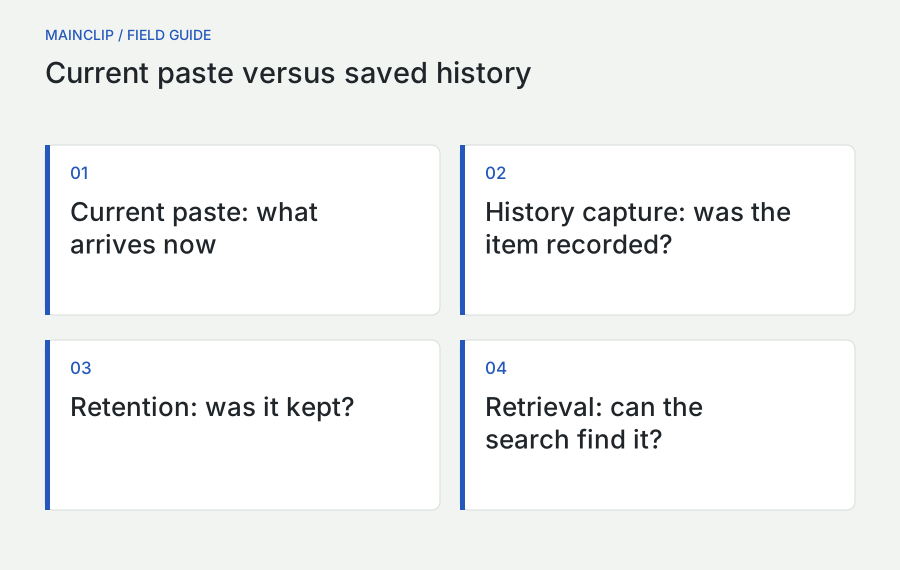
Separate four outcomes: nothing appears; the wrong content appears; the right content arrives with unwanted formatting; or the content arrives correctly but is absent from saved history. These outcomes can look similar when you are switching between several windows. Write down the source application, destination application, content type, and exact outcome before trying anything else. An example written now is more useful than a vague memory after a restart.
Also distinguish a failure from an unavailable operation. A text field can be read-only. A picture displayed inside a page is not necessarily selected as an image object. A password field can deliberately behave differently from an ordinary note. A file can be visible in a list without the list offering a text representation suitable for a message. The correct next step may be a different selection or export action, rather than a system repair.
Apple documents Command-C and Command-V, their menu equivalents, and Paste and Match Style. It also explains that individual applications decide when copy and paste are available. A dimmed command therefore has meaning: examine the selection and destination before assuming a broken keyboard. See Apple's copy-and-paste instructions for the platform's basic commands.
Run one controlled text test
Save any document you are editing. Open a new, disposable text document and type Maple ticket 284. Use this exact phrase as the first test item. It contains letters, spaces, and digits, but nothing private. Select the phrase, choose Copy from the application's menu, place the insertion point on a new line, and choose Paste. Using menus first removes shortcut handling from this initial test.
If the phrase appears correctly in the same document, copy it again and paste it into a second ordinary text destination. Choose a local document or a draft that cannot accidentally be sent. Avoid a login field, a payment form, or a live customer conversation. These introduce special rules and consequences before you have established whether the basic transfer works.
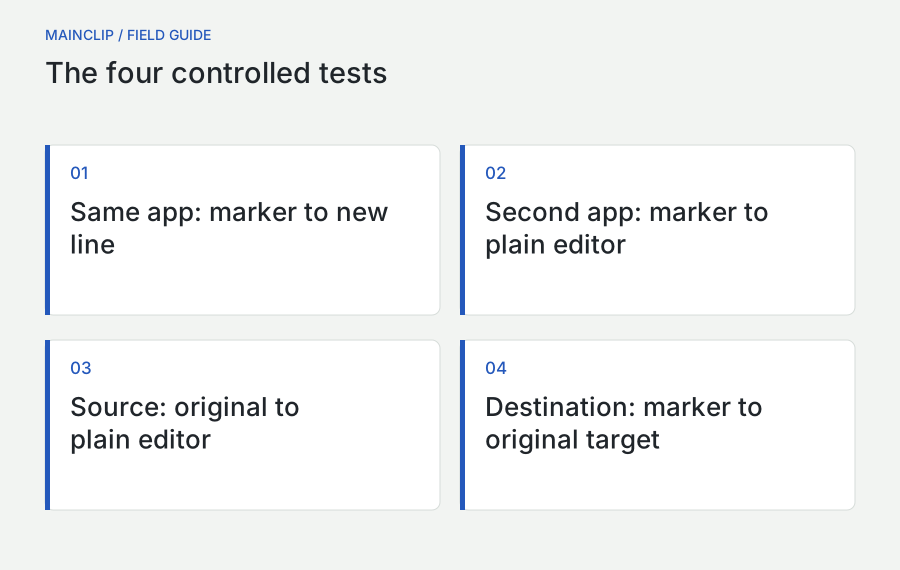
Now return to the original troublesome source. Copy a small, harmless selection and paste it into your disposable document. Finally, copy the known test phrase from the disposable document and paste it into the troublesome destination. These two transfers divide the problem into source and destination behavior. A source that fails everywhere needs a different investigation from a destination that rejects everything.
- Same-app test: Can the disposable document copy and paste its own phrase?
- Second-app test: Can another ordinary editor accept that phrase?
- Source test: Can the troublesome source send plain text to the disposable document?
- Destination test: Can the troublesome destination accept the known phrase?
Record the four results before changing settings. For example: same-app yes, second-app yes, source yes, destination no. That pattern is already a useful support report. It also tells you that deleting a clipboard history database would be an unrelated intervention. If the result changes between runs, record what happened between them, including another copy, an application switch, or a remote-session reconnect.
Once menu-based copying works, repeat only the successful first test with the keyboard. If the menu route still works and the shortcut route fails, continue with the keyboard section. If both routes fail for one application, focus on that application. This order avoids blaming a global shortcut for a selection problem that also affects the menu.
Use the result pattern as a decision table
| Observed pattern | Useful next investigation | Premature action to avoid |
|---|---|---|
| Menus work; shortcuts fail | Keyboard mapping, focus, shortcut conflicts | Deleting history or restoring a backup |
| One source fails in several destinations | Selection, source format, source application | Resetting every destination |
| Several sources fail in one destination | Editability, accepted formats, destination state | Changing unrelated capture filters |
| Plain text works; a picture or table fails | Content representation and destination support | Assuming all clipboard transfers are broken |
| Paste works; saved history misses items | Monitoring, exclusions, retention, history search | Restarting system services immediately |
| Local paste works; another device fails | Cross-device prerequisites and connection | Reinstalling the local clipboard manager |
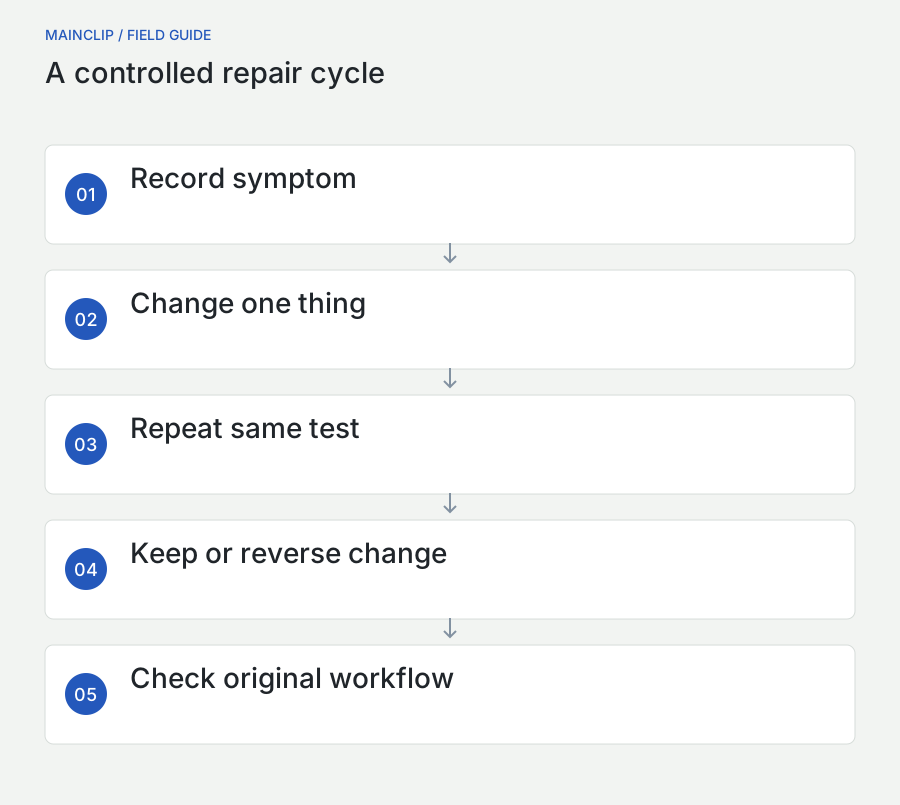
The table identifies a starting point, not a guaranteed cause. Two faults can coexist. A browser shortcut can fail while a destination also strips formatting. Resolve the smallest demonstrated failure first, then repeat the original task. If you change five settings together and the problem disappears, you have not learned which setting mattered or which ones can safely return to their earlier values.
Keep a simple change log: time, one change, test result, and whether you kept or reversed that change. This is especially helpful for intermittent problems. “Disabled extension A; pasted the marker successfully three times; restored extension A; failure returned” contains more evidence than “something in the browser.” Do not claim a permanent fix after one lucky paste. Repeat the same controlled transfer before considering the issue resolved.
Check what the source actually selected
A selection can be visually convincing without representing what you intend to copy. A diagram editor may select a shape rather than its label. A file browser may select a document rather than the text inside it. A webpage can show text in a picture. Before changing system settings, ask whether the source has selected editable text, an object, an image, or a file reference.
For text, start with one short sentence. Watch whether the highlight follows characters or surrounds a larger object. If the application has separate viewing and editing modes, enter the appropriate mode before selecting. For a PDF, test a sentence that can genuinely be selected as text. If a page is only a scanned image, extracting words is a separate OCR task; ordinary copying cannot be assumed to produce the visible sentence.
Try an application-provided Copy command that describes the object precisely. A browser might distinguish copying an address from copying an image. A design tool might distinguish copying an object from copying its properties. Choose the operation that matches the destination. Do not infer that a command named Copy always produces plain text, and do not repeatedly use the same ambiguous command without checking its result.
When the source is an application-generated preview, locate the original material if possible. Copy text from the original document instead of a thumbnail. Use the application's export command for a graphic that needs to become a standalone image. This is often a more reliable workflow than expecting a preview surface to offer every representation needed by another app.
A useful confirmation is to paste into two destinations with different roles: an ordinary text document and the intended application. If neither receives text but the intended design app receives an object, the source is probably transferring a non-text representation. That is valuable information. Preserve the working route rather than trying to force every object through a text-only field.
Check destination focus and editability
A successful copy still needs a destination that can accept it. Click directly in the intended field and look for an insertion point or other editing indicator. A highlighted window title, selected row, or search result does not necessarily mean the text editor inside that window has focus. Complex applications can contain several independent editing surfaces within a single window.
Test whether you can type a few harmless characters into the destination. If typing does not work, paste is unlikely to be the primary problem. The document might be locked, the form might be disabled, the editor might not have loaded, or a modal dialog might be awaiting a response. Resolve that state first. Remove your test characters afterward, preferably in an unsent draft.
If typing works but a short phrase does not paste, compare keyboard and menu actions. Then test a simpler destination within the same application. A message subject line and a rich message body may use different editors. A spreadsheet cell and its formula editor can behave differently. These comparisons reveal the scope of the problem without changing an entire application profile.
Check selection replacement carefully. Pasting can replace the currently selected content. If a large block disappears and the new phrase is difficult to notice, it can feel like a failed paste even though a replacement occurred. Undo the change immediately in the disposable document, then repeat with no active selection. In production work, save a copy before testing operations that might replace a substantial amount of content.
Finally, inspect the actual result rather than relying only on appearance. White text on a white background, a tiny font, or an object placed outside the visible canvas can look like an empty paste. A plain-text diagnostic destination helps distinguish “nothing was transferred” from “the transferred content is being displayed unexpectedly.”
Investigate keyboard-only failures
When menu commands work and shortcuts do not, you already have a useful boundary. Check the active application shown in the menu bar. A shortcut goes to the focused context, which may be a search field, floating panel, remote desktop, or shortcut utility rather than the document you are watching. Click the intended editor and repeat the test with a visible insertion point.
Next, consider what changed recently. A new keyboard, remapping tool, app-specific shortcut, or remote-session setting can alter the path of a key combination. Test the built-in keyboard if one is available, or another familiar keyboard. The goal is comparison, not a conclusion that external keyboards are inherently unreliable. Keep the document and test phrase the same while changing the input device.
Check whether a utility has claimed the same combination. Temporarily pause that utility through its own controls, test again, and restore it if the result is unchanged. Avoid removing several utilities at once. If one conflict is confirmed, choose an unambiguous shortcut for that utility and document the change. A shortcut that differs only slightly from a frequently used command can continue to cause accidental actions even after the technical conflict is gone.
In a remote desktop or virtual machine, distinguish the local Mac's shortcuts from the remote application's shortcuts. Run the controlled text test locally before testing inside the session. Then test within the remote environment. If both work internally but transfer across the boundary fails, investigate that connection's clipboard-sharing configuration with its administrator or documentation.
MainClip's Quick Paste shortcut opens a retrieval workflow. Do not confuse failure to open that panel with failure of the Mac's ordinary Copy or Paste commands. Test those separately. Choosing a saved item and copying it back to the clipboard is also a different action from placing it automatically into every possible destination.
Separate formatting problems from transfer problems
A paste that carries the wrong font is still a successful transfer of content. Treat it as a formatting decision. First establish whether the words are correct. Then choose whether you need the source's visual treatment or the destination's style. For a reusable support response, matching the destination may be preferable. For a designed quotation or a styled table, preserving structure may matter more.
Use an ordinary text destination as a diagnostic filter, not an automatic replacement for the real workflow. If text survives that route, the source is providing usable words. However, flattening through plain text can discard links, emphasis, tables, and other structure. Make an intentional trade-off. Do not solve a formatting problem by silently losing information the recipient needs.
Tables deserve a separate test. Copy two rows and two columns before transferring a large range. Check where the cells land and whether embedded line breaks create extra rows. Compare the number of source cells with the destination. If the application supports importing a file format designed for tabular data, that route may be more predictable for a substantial table than a complex paste.
For code, inspect straight and curly quotation marks, indentation, line endings, and characters that look alike. Use a harmless sample rather than executable credentials or production commands. Paste into a code editor before running anything. A clipboard history tool can preserve useful code snippets, but it cannot decide whether a copied command is appropriate for your machine.
For links, compare visible link text with the destination address. A sentence reading “view the report” and the URL behind it serve different purposes. If your destination requires a URL, copy the actual address. If your document requires readable prose, preserve the label and verify the link separately. A transfer can be technically correct while carrying the wrong representation for the task.
Test images, files, and PDFs as separate content types
Do not use one successful text paste as proof that a destination accepts images or files. A form may support text but require attachments through an upload control. An editor may accept an image object but not a Finder file reference. A messaging application might convert a pasted image into an attachment. Establish the intended result before judging whether the transfer failed.
For an image problem, create or choose a small non-sensitive sample. Transfer it to an image-capable destination and then to the application that failed. If the first succeeds, investigate the second application's attachment or import workflow. If both fail, return to the source and determine whether you copied the image itself, its address, or the surrounding page element.
For files, confirm that the original remains available. A reference to a file on an unmounted drive is not equivalent to a self-contained copy. If a workflow depends on an external disk or restricted location, test with a harmless file in an ordinary local folder. Keep the original untouched. A successful local-file test points toward availability or access, not a general clipboard failure.
PDFs combine several distinct tasks: copying selected text, copying an image region, transferring the PDF file, and extracting text from a scan. Name the task explicitly. A copied PDF file will not necessarily become its text when pasted into a note. A scan without selectable text requires a text-recognition workflow. MainClip can manage saved clips and previews; it does not provide OCR or full-document PDF analysis.
MainSnap can help when the material is visual: capture the relevant region, annotate it, or use its local text recognition when appropriate. Inspect recognized words before using them, especially identifiers and numbers. That is a deliberate conversion step, not evidence that the original copy operation should have produced text.
Isolate browser and web-editor behavior
A web editor introduces another layer between source and destination. Start by testing whether ordinary typing works in the field. Check whether the page has finished loading and whether it requires you to enter editing mode. A preview, a disabled form, or an expired session can look like a clipboard problem while accepting no input at all.
Try the short marker phrase rather than a long formatted selection. If the marker works but the real content does not, compare size and structure. Add complexity gradually: two paragraphs, then a link, then a small table or image. This approach reveals the first element that changes the outcome. It also produces a minimal example that a support team can reproduce.
If the same site behaves differently in two browser profiles or browsers, record that result before drawing conclusions. Extensions, session state, editor versions, and site-specific settings can differ. A clean test profile is useful only if you can sign in safely and are allowed to use it for the material involved. Do not move confidential information into an unapproved environment just to simplify a test.
Some sites offer their own copy buttons. Compare the button with selecting and copying visible text through the browser's ordinary controls. A failed site button does not prove that the Mac clipboard has stopped working. Conversely, a button's “Copied” message should be checked by pasting a harmless result into your test document; interface feedback alone does not show what reached the destination.
When a site deliberately blocks a transfer, use its supported export, attachment, or editing route. Do not treat a workplace restriction as something to bypass. Report the precise workflow that is blocked and ask which approved method to use. The practical objective is a reliable transfer, not winning an argument with a button.
Treat clipboard history as a separate investigation
If current copying and pasting works but an older item is missing, stop using “paste is broken” as the description. Investigate whether that item was captured, retained, and found. These are separate events. A history list can be filtered. An entry can have been removed by an age or size limit. Monitoring can have been paused when the original copy occurred.
Start with a fresh marker that has never appeared in your history. Copy it from an ordinary permitted application, leave the source available briefly, and look for it without restrictive filters. A unique phrase is better than copying the same word repeatedly: duplicate handling may update an existing item rather than create the new row you expected.
Then copy the marker from the application involved in the failure. If the first source is recorded and the second is not, inspect source-specific exclusions or permissions. If neither appears, inspect the global monitoring state. If both appear but older material is missing, inspect retention and the search criteria. This sequence divides capture failures from retrieval failures.
Do not delete a history database as an opening move. Doing so destroys evidence and potentially useful saved content. If you need to troubleshoot stored data, create an appropriate backup first and follow product-specific instructions. A healthy current clipboard is not a guarantee that every historical item exists, and a history app cannot reconstruct content it never recorded.
Check MainClip's capture and retrieval settings
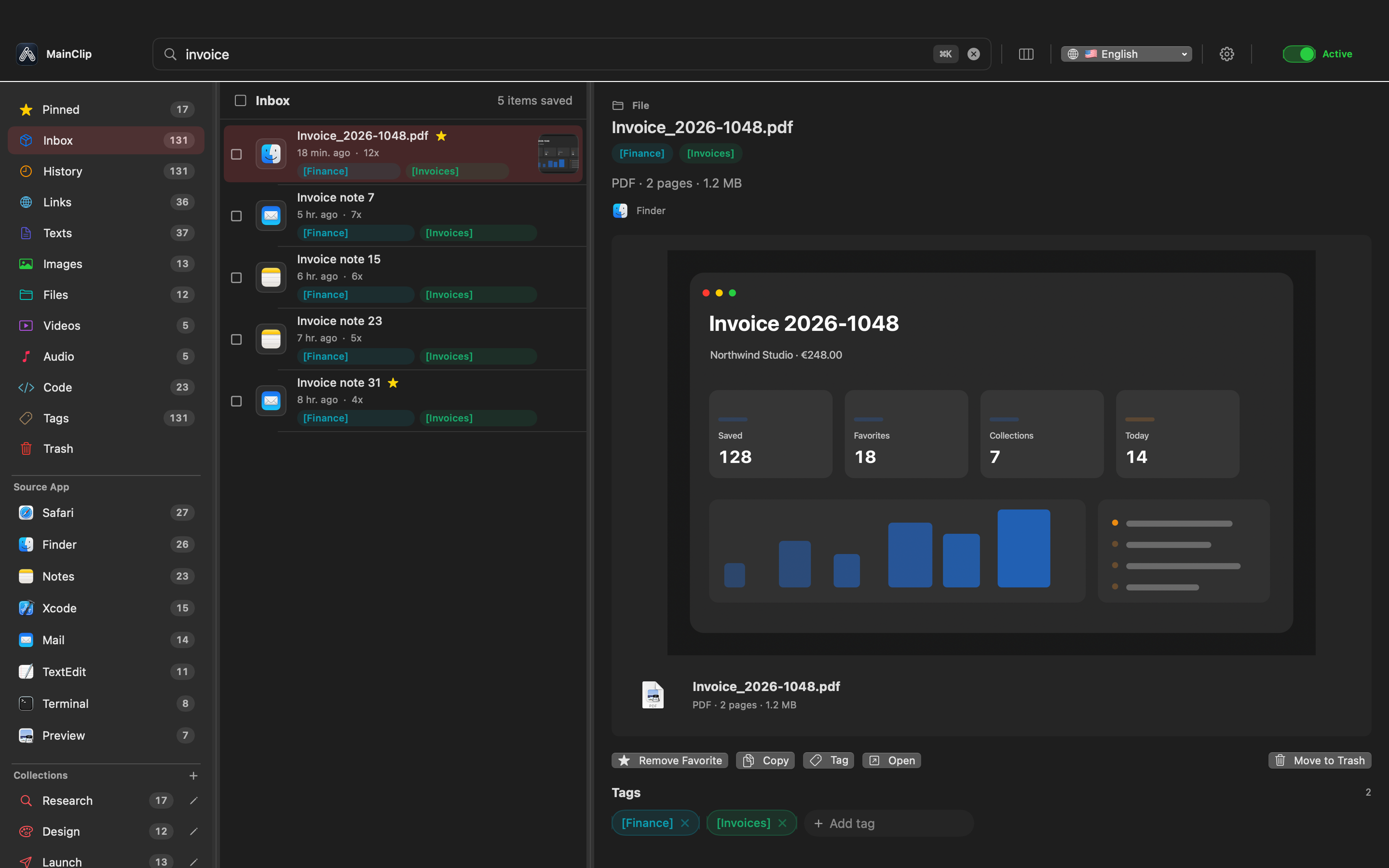
MainClip stores its history locally and provides search, tags, collections, and controls over what it records. For a missing-entry investigation, inspect whether monitoring is active and whether private mode is enabled. A setting that intentionally suspends capture should not be “fixed” by deleting data. Restore the monitoring state you actually want, then repeat the fresh-marker test.
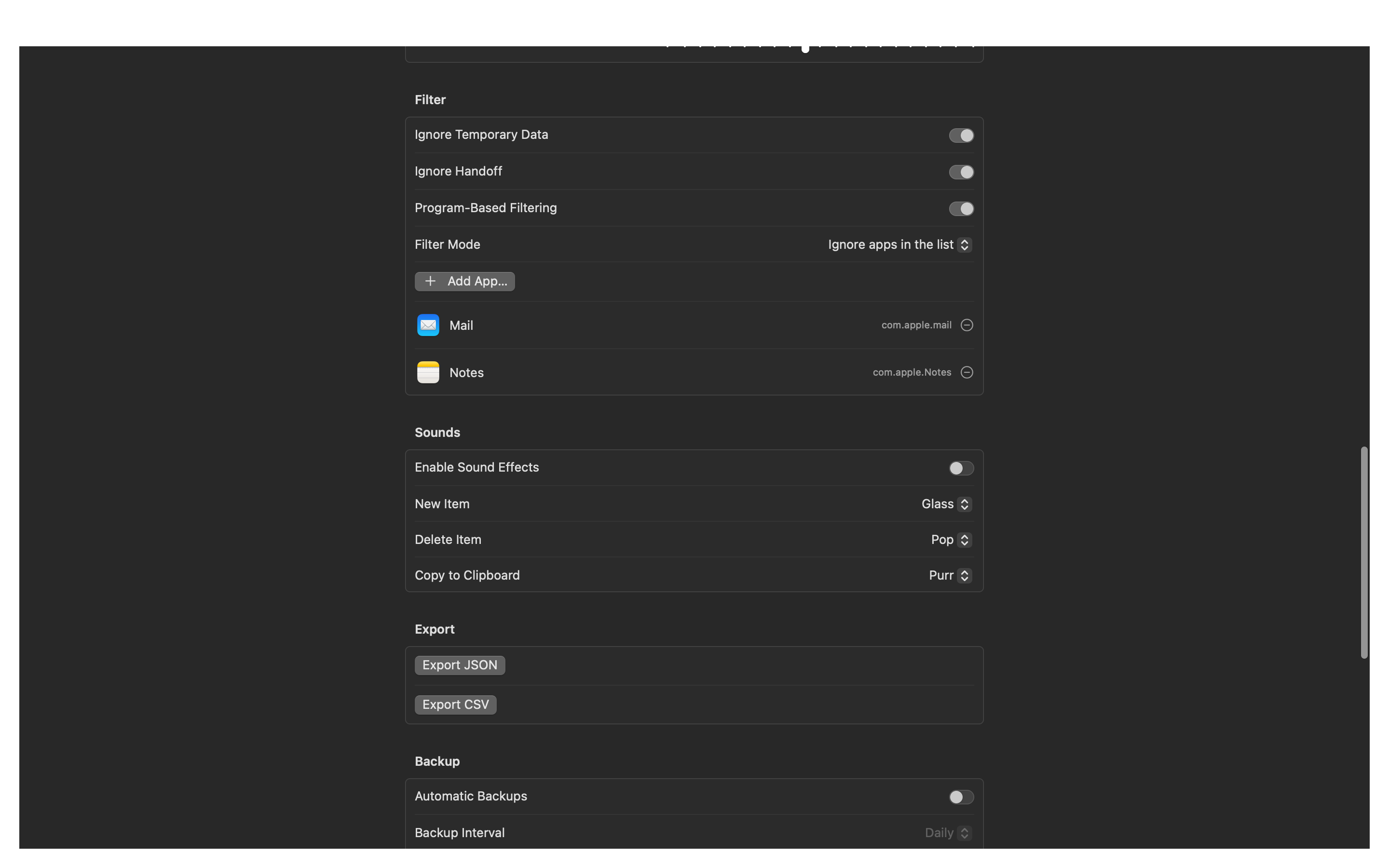
Review the application filter carefully. An exclusion list and an allow-only list mean different things. In the first, named applications are omitted; in the second, applications outside the list are omitted. Write down which mode is selected before adjusting a list. A correct application name in the wrong mode can produce a confusing pattern that looks intermittent across different sources.
MainClip also has handling for transient or concealed clipboard content. These controls matter around applications that mark temporary or sensitive transfers. Do not weaken privacy-related settings merely to make every test appear in history. Instead, prove ordinary capture with harmless text from a normal document and evaluate exceptional sources according to your actual needs.
For retrieval, remove unnecessary filters and search for a distinctive part of the content, filename, URL, domain, source application, or tag. Keep expectations precise: searching saved text is not OCR, and a PDF preview does not mean the entire document has been indexed as text. If you remember only words visible inside a screenshot, use a suitable text-recognition workflow on that image rather than assuming MainClip can search them.
Review retention and history limits if recent capture works. Also consider the free mode's clip limit when interpreting what is retained. Do not infer a malfunction from a limit that is functioning as configured. For product-specific details, use the MainClip setup guide and support page, describing the observed test results rather than sending your entire history.
Account for your macOS version
Advice about Mac clipboard history must name the macOS version. Apple now documents clipboard history in Spotlight for macOS Tahoe or later. Its instructions describe opening Spotlight, choosing the Clipboard view, allowing clipboard results when prompted, and searching saved items. Older blanket claims that a Mac never has a native history interface are therefore outdated. See Apple's Spotlight clipboard-history documentation.
When investigating an issue, record the version installed on the actual Mac. Do not assume a colleague sees the same interface because both machines are Macs. A screen recording from a newer system can be accurate while being irrelevant to your own menu layout. Use documentation matching the system you are testing.
If more than one history feature is enabled, identify which interface you are viewing. Clearing one list should not be assumed to clear another application's independent database. Likewise, an item found in one history does not prove another tool captured it. Keep the test marker and the names of the interfaces in your notes so that comparisons remain meaningful.
Test cross-device copying only after local copying works
Universal Clipboard is a separate branch of the investigation. Apple lists compatible devices, the same Apple Account, nearby devices, and enabled Wi-Fi, Bluetooth, and Handoff as prerequisites. Copied content remains available for transfer only briefly and can be replaced by another copy. Check Apple's Universal Clipboard requirements rather than treating every cross-device failure as a local app defect.
Use a new short marker for each direction. First copy “Maple outbound 285” on the Mac and try it on the other device. Then copy a different phrase on that device and try it on the Mac. Record the two outcomes separately. A one-way problem is different from a complete failure, and using different markers prevents an older successful transfer from masquerading as a new one.
Avoid copying additional material while testing the transfer. Keep the destination ready, copy the marker, and paste promptly. If the marker fails, confirm that it still pastes locally on the source device. That local confirmation is the critical boundary: without it, you do not know whether the source copied anything useful in the first place.
MainClip's local history should not be described as an iCloud synchronization service. A history entry on one Mac and a current clipboard transfer between devices are different mechanisms. For a planned move of saved history, use an appropriate backup and restore workflow rather than trying to send the entire archive through a transient clipboard transfer.
Reopen or restart in a controlled order
If the problem remains after the targeted tests, preserve your work before restarting anything. Save drafts, record the failure pattern, and keep the harmless example. Reopen the single affected application first when the evidence points to that application. Repeat the same marker test after reopening; changing the sample at the same time weakens the comparison.
If several unrelated local applications fail, a normal Mac restart is a reasonable broader test after saving work. Record whether the failure returns immediately or only after a particular application or workflow begins. A restart that temporarily hides the problem is useful evidence, but it is not an explanation. Reproducing the trigger afterward is what makes the next support conversation productive.
Avoid starting with commands that terminate system services, remove preference files, or erase caches. Such actions can discard state and complicate the investigation. They are especially inappropriate when one website or one content type is the only demonstrated failure. If a support professional recommends a specific reset, ask what it changes, preserve relevant data, and test one intervention at a time.
Do not reinstall a clipboard manager simply because an unrelated destination rejects rich text. Reinstallation is a large change compared with testing a short phrase in another field. Keep the scale of the intervention proportional to the scope of the evidence. This preserves both your data and a useful understanding of what went wrong.
Investigate failures that happen only sometimes
Intermittent failures need a record of events between Copy and Paste. The clipboard is a shared working surface, and another deliberate or automated copy can change the current item. That does not tell you which application was responsible in a particular case. It tells you to narrow the observation window. Copy one unique marker, keep your hands away from other copy controls, and paste it immediately into the disposable destination.
Repeat with a short pause before pasting. Then repeat after the one action you suspect, such as opening a retrieval panel, switching to a remote session, or clicking an application button. Change only that intervening action. If the result changes consistently after one action, you have a candidate trigger. If it varies without that action, keep investigating rather than treating the first apparent correlation as proof.
Record what arrived, including whether it was empty, an older marker, or content from another source. An older marker suggests a different problem from a newly copied object in an incompatible format. Do not collect private clipboard contents merely to create a detailed log. Synthetic markers provide enough information for timing tests and are easier to distinguish from one another.
A small experiment for repeated-copy confusion
Use three deliberately different phrases: “Maple first 301,” “Cedar second 302,” and “Birch third 303.” Copy each from your test document and paste it immediately underneath its source. Then repeat the sequence with a normal application switch between copying and pasting. Finally, test the actual workflow that fails. Keep the same sequence throughout so an out-of-order result is obvious.
If current paste remains correct but the history list displays fewer than three new rows, investigate the history tool separately. Search each complete marker without restrictive filters. A list position is not proof of absence, particularly when a tool updates existing entries or uses a different sort order. Using three unique phrases removes ordinary duplicate content as a confounding factor, although it does not by itself prove any particular application's capture behavior.
Recognize incomplete and excessively broad tests
A test is incomplete when you change the clipboard but never inspect the destination. A notification that says “copied” is useful feedback, yet the acceptance test remains the resulting paste. A test is excessively broad when you copy hundreds of objects and conclude that the entire system is unreliable because one application rejects the batch. Start with one representative object, then increase the workload until the first failure appears.
For a long selection, compare the beginning and end after pasting. Count rows when working with a small table. For a file, open the transferred item and inspect its identity. These checks do not need elaborate tools; they need a definition of success. Decide that definition before running the experiment so you do not unconsciously accept a partial result as a complete repair.
When the failure stops occurring, preserve the last useful observation and continue normal work cautiously. Do not keep changing settings merely to obtain a more satisfying explanation. If it returns, resume the same test sequence. A stable baseline and a small event log make an intermittent issue easier to isolate than a large collection of unrelated resets.
Three worked examples
A formatted support reply becomes an empty message
Elena copies a response containing a table and two links into a browser-based support editor. Nothing appears. Her short marker pastes successfully into that editor, and the complete response pastes into a local document. She now knows that basic copying works and that the failure depends on the content or the web editor.
She tests the first paragraph, then the links, then a two-cell table. The table is the first failing addition. Rather than resetting the Mac, she uses the editor's own table controls and pastes the text into individual cells. She reports the minimal table example to the service's support team. The workaround preserves the reply's meaning while the bug report identifies a reproducible boundary.
A saved snippet opens, but nothing reaches the intended field
Jon retrieves a saved entry and assumes it will appear in the document behind the history panel. Instead, the field stays unchanged. He copies the item, clicks the document's text field, and uses the ordinary Paste command. The content appears. His problem was an assumption about the retrieval workflow, not missing data.
He practices the complete sequence with a harmless phrase: retrieve, copy, focus the destination, paste. He also chooses a retrieval shortcut that does not collide with an editor command. The successful sequence is now explicit, which is more dependable than interpreting a panel closing as proof that text has already been inserted.
Text pastes normally but is missing from MainClip
Maya sees new copies from her browser but none from a particular work application. Both sources paste correctly into a plain document. She checks MainClip's capture filters and finds that the work application is intentionally excluded. Her unique test phrase makes the difference easy to verify without using a client record.
She keeps the exclusion because that application contains sensitive work. For approved reusable material, she maintains a separate document and copies only the selected non-sensitive text from there. The outcome is not “capture everything.” It is a workflow that explains the missing entries while respecting the reason the exclusion existed.
Build a support report someone can reproduce
A useful report is small and specific. Include the macOS version, application versions, source and destination, content type, and whether menu commands differ from keyboard commands. Describe the expected result and actual result in separate sentences. Add the four controlled-test outcomes so that the recipient does not have to rediscover your starting point.
Provide a synthetic example whenever possible. Replace a customer's message with a short invented paragraph that triggers the same problem. If a table causes failure, reduce it to the smallest number of rows that still fails. If a filename matters, reproduce its relevant characteristics without exposing a private project name. Explain what you changed in the example so the support team understands its relationship to the original.
A screenshot can clarify focus, a dimmed command, or an unexpected result. Capture only the relevant area and check for names, account details, and unrelated windows before sharing. If using MainSnap, export a flattened, reviewed image when you have redacted information; do not share an editable original that still contains the source image.
Finish with a numbered reproduction sequence and the last successful state you know. “Worked yesterday” is less useful than “works in a new local document, fails only after this editor switches to preview mode.” Do not attach a complete clipboard backup to an ordinary support request. Most investigations need a minimal example, not your history.
Verify the repair with a short acceptance test
After a change appears to fix the issue, repeat the original task and the controlled test. Use a fresh phrase, a fresh destination draft, and the same content type that originally failed. A fix for plain text does not establish that an image or table now transfers correctly. Check the outcome relevant to your work.
Run the test after reopening the affected application. If the problem involved another device, test both directions again. If it involved history capture, verify a new entry and retrieve it. These are separate acceptance criteria. Write a brief result such as “three new text markers captured and pasted after reopening; image transfer still untested.” That statement is more honest and actionable than “everything fixed.”
Return temporary diagnostic settings to their intended state. Restore exclusions that were paused for a harmless test, remove disposable documents, and close unsent drafts. Keep the short change log if the fault was intermittent. If the issue returns, you now have a known comparison and can avoid repeating unrelated steps.
A reliable copy-and-paste workflow ends with the intended content visible in the intended destination. It also makes clear which history system, if any, retained the item. Once those two results are checked separately, most confusing failures become a manageable sequence of observations rather than a reason to reset the whole Mac.