

Start with the file you intend to share
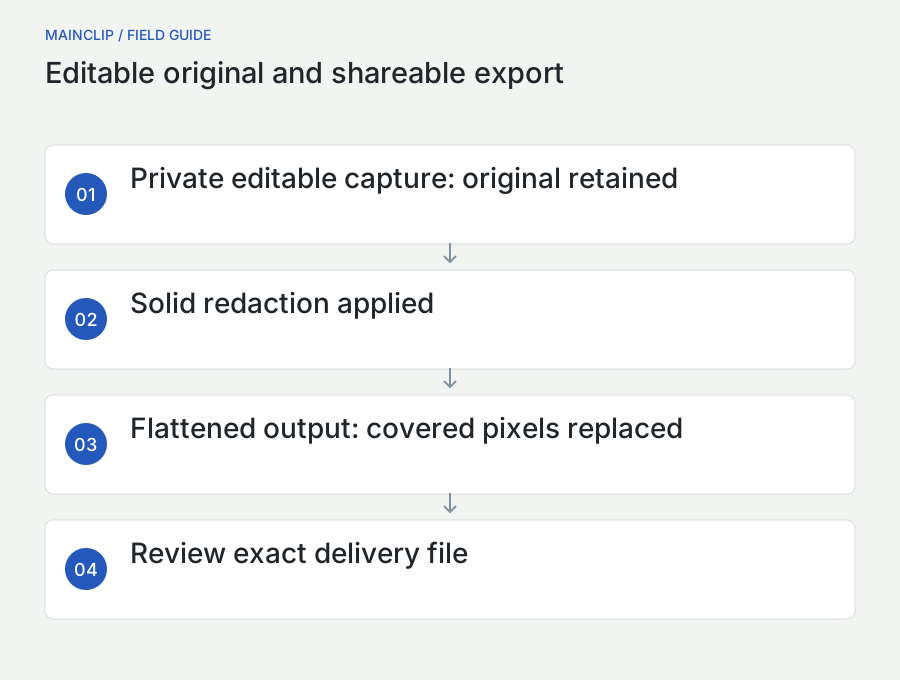
To redact a screenshot on a Mac, cover the sensitive region with an opaque solid redaction, export a flattened image, and inspect that exported file before sending it. The important distinction is between an editable picture in which a shape can still be moved and a delivery image in which the covered source pixels have been replaced. A dark rectangle on your screen is not, by itself, evidence that you are sharing the right artifact.
This guide focuses on practical screenshot workflows: a support request, a product tutorial, a customer conversation, an internal report, or a public example. It is not a procedure for sanitizing arbitrary office documents, every type of PDF, or a whole computer. Screenshots are images, but the surrounding workflow can contain originals, clipboard copies, text recognition results, filenames, and unrelated visible details. Good redaction considers that whole route without turning every ordinary picture into a complicated project.
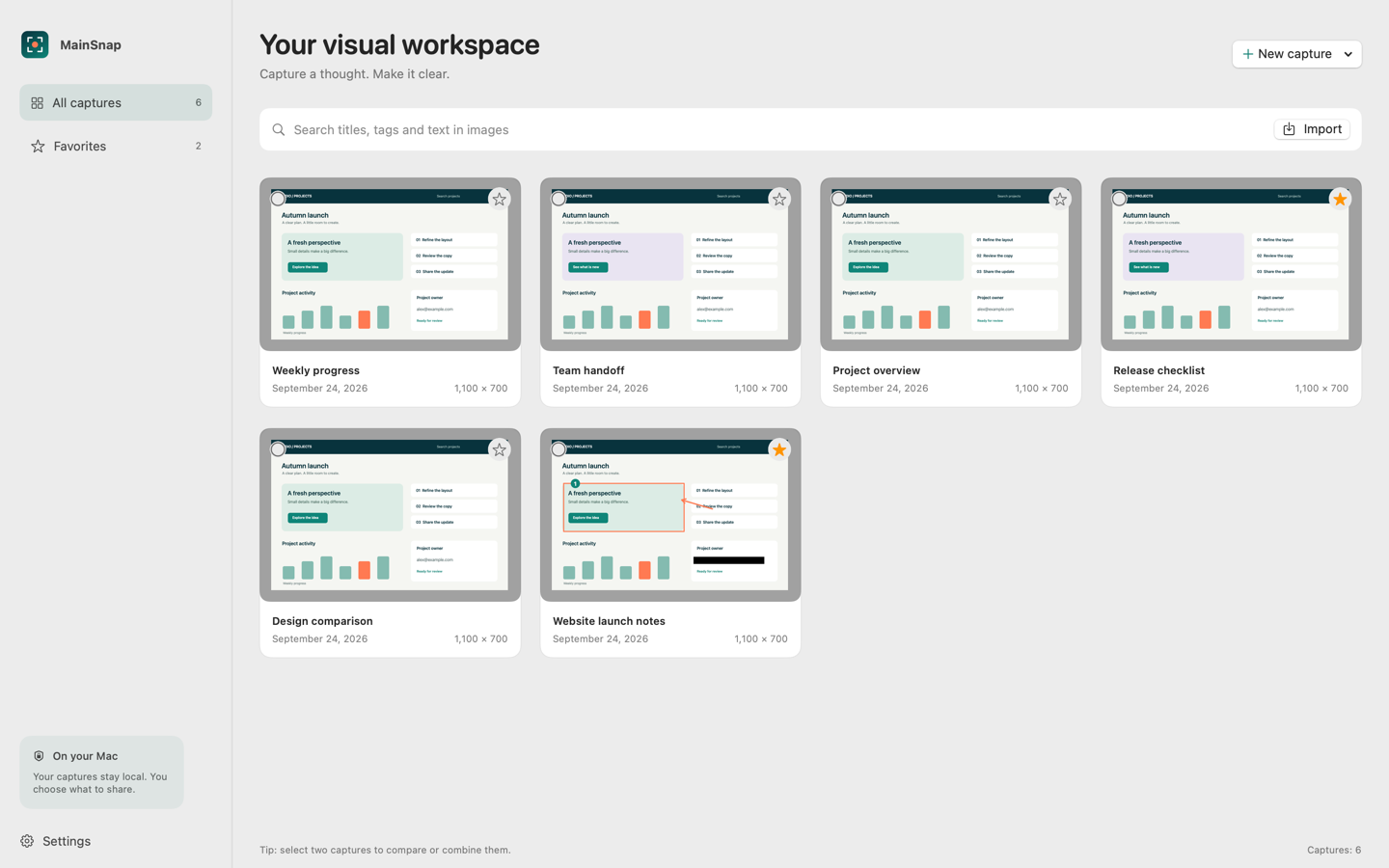
MainSnap provides a dedicated solid redaction tool and flattened PNG, JPEG, and PDF export. Its native sharing action prepares flattened PNG copies. The editable local capture intentionally retains the original so that you can revise your work. That is useful behavior, but it means the private project and the shareable image have different roles. Use the exported or shared image for delivery; do not treat the existence of a black box in the editor as removal of every local copy.
The examples below use fictional names, placeholder addresses, and invented records. When practicing, use similarly harmless material. You will get a more reliable workflow by testing with data you can safely inspect than by improvising the process on a screenshot of a real customer account a few seconds before a meeting.
Decide what the reader needs to know
The first redaction decision happens before drawing a box: define the purpose of the picture. If a support team needs the wording of an error, it may not need a complete customer list behind the error dialog. If a tutorial explains a filter, it may not need real transactions. If a colleague needs to compare two layout states, they may need row structure but not the names inside those rows.
Write the intended message in one sentence. For example, “The export dialog disables the button after this option is selected.” That sentence identifies the useful parts: the dialog, the option, and the button state. It also exposes irrelevant parts: the account menu, other browser tabs, a customer name in the window title, and the desktop behind the window. Reduce the captured area or prepare a demonstration account where practical.
Prefer reducing exposure at capture time
A focused capture leaves fewer details to review. Arrange the relevant window, close unrelated menus, and wait for notifications to disappear. Use sample records where the behavior does not depend on real records. If the exact incident requires real data, keep the capture as narrow as the explanation allows. MainSnap supports area and window capture; the released feature set described here does not include cropping, so choose the intended area during capture or recapture it.
This is not an argument for removing all context. A screenshot showing only a disabled button can be impossible to interpret. Keep enough structure to explain where the reader is and what happened. The aim is a useful minimum: the controls, labels, and relationships that support the question, without incidental information that happens to be nearby.
Classify the visible details by purpose
For a fictional support screenshot, divide the content into three groups. Required details might include an error code and the selected option. Replaceable details might include a sample project name that can be recreated. Unnecessary details might include an email address, a browser profile picture, and a list of recent documents. You can then retain the first group, substitute the second before capture where possible, and redact the third.
Making that small distinction improves both privacy and clarity. An image with half its area hidden behind random boxes often tells the reader that the capture was too broad. A carefully framed image with one deliberate redaction is easier to understand and easier to check. When a broad view is necessary, add a caption explaining that some identifying fields have been removed while the relevant interface state remains visible.
Use solid coverage for information that must not be visible
A highlight is designed to preserve visibility beneath it. A blur blends image detail. Pixelation groups or replaces local detail. These effects can be visually useful, but they are poor substitutes for a clear redaction requirement. Their appearance depends on the source, the amount of processing, and the information a reader already has. For sensitive screenshot text, a solid opaque replacement is a simpler choice to reason about.
Do not assess redaction merely by whether you can comfortably read the text at the current zoom. A faint line, a few exposed characters, a recognizable logo, or the length of a partially hidden account identifier may still reveal useful information. Cover the complete intended region with a margin. Avoid tracing each letter so closely that small edges remain visible around the mask.
Why a highlighter is the wrong tool
Highlighting deliberately lets the original content show through. It may make a name harder to read on one background while leaving it obvious on another. Stacking several translucent marks is also difficult to review consistently. A reader should not need to infer whether your dark patch is fully opaque. Use the tool whose job is solid redaction and reserve highlights for information you want people to notice.
MainSnap treats these as separate annotation types. Its highlight is translucent; its redaction uses solid black coverage in the flattened render. Redactions are rendered after other annotation types so that a later-looking arrow or text label does not reveal the covered source through a transparent effect. You still need to place the region correctly and review the entire image.
Do not overclaim what flattening proves
A flattened raster export can replace covered pixels in that output. It does not prove that every sensitive item in the picture was covered, that an earlier copy was never sent, or that another file on the Mac no longer exists. Those are separate questions. Keep the claim specific: the region you covered is replaced in the reviewed exported image.
This specific language is useful when collaborating. Instead of saying “the screenshot is completely safe,” say “I removed the email address and account identifier from this exported image and checked the attachment.” The second statement describes actual work and leaves room for a reviewer to notice something else. Precision improves the process without requiring exaggerated reassurance.
Redact and export a screenshot with MainSnap
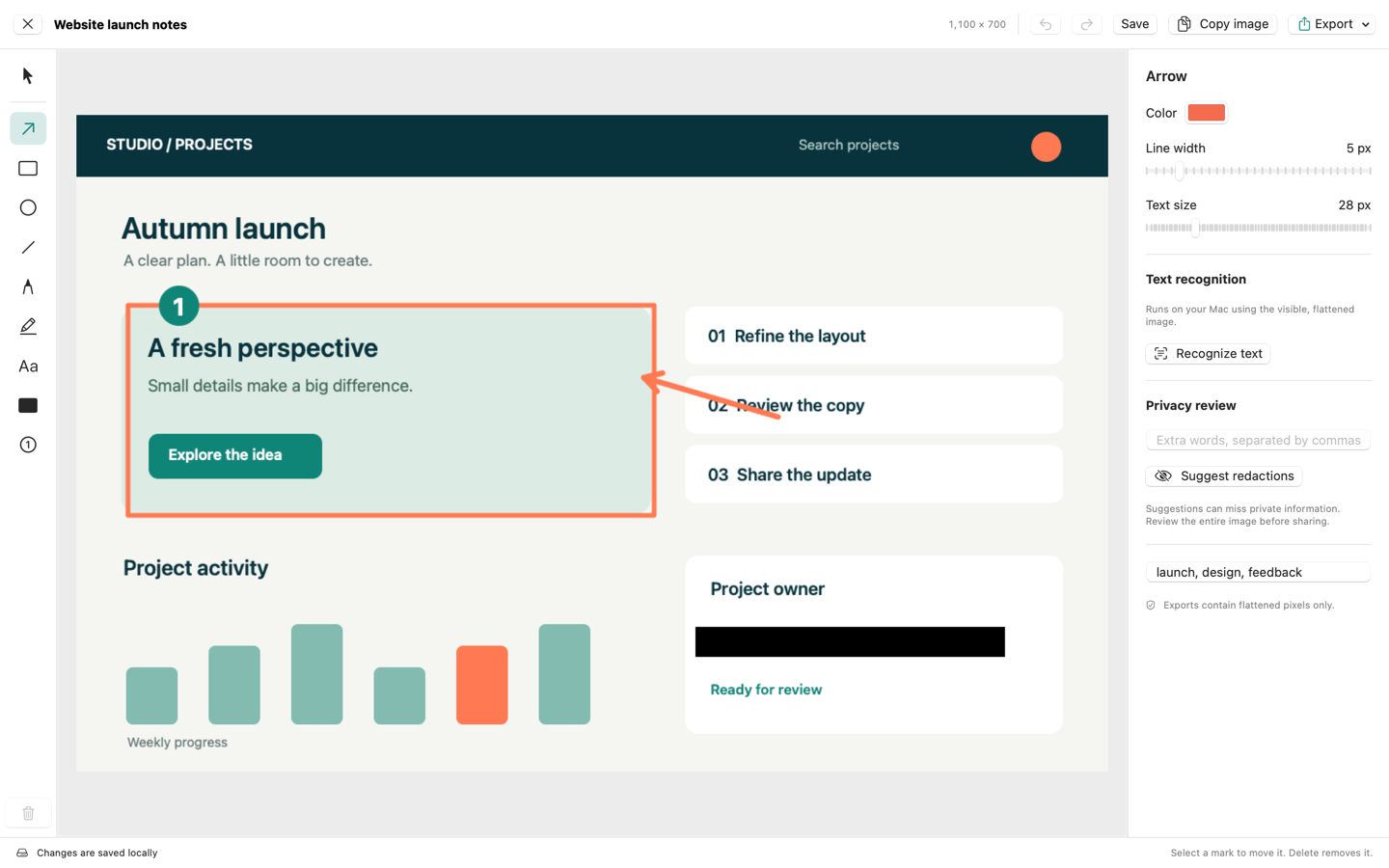
Begin with a capture or an imported image in MainSnap's editor. Identify the regions to remove before adding decorative annotations. Choose the Redact tool and cover each sensitive area completely. Use a little extra space around text, especially where letters have descenders or where a value touches a neighboring label. Keep the label visible when it is useful for understanding the screen, but do not preserve a label that itself reveals confidential context.
- Read the complete image once before editing, including corners and window titles.
- Apply solid redactions to the identified regions.
- Review the redactions at a size where small details are visible.
- Add any arrows or numbered instructions needed for the explanation.
- Export the flattened image in the format appropriate for the recipient.
- Open that exported file and inspect it independently of the editable capture.
- Attach or share the reviewed artifact, checking the destination and recipient.
MainSnap's native Share action creates a flattened PNG copy of the current edited image for macOS sharing services such as Mail or AirDrop when those services are available. It does not hand the receiving service the editable capture, its original image, OCR text, or tags. A service can have its own behavior and requirements, so still inspect the prepared attachment and confirm the intended destination.
Use selection and revision without confusing the final artifact
Editable annotations are convenient because a box can be moved or replaced with a newly drawn redaction while preparing the image. That same convenience is the reason an editor view is not the final proof of redaction. If you make another edit after exporting, create a fresh export and clearly replace the earlier derivative. Do not keep two almost identically named files in the attachment chooser and rely on memory.
A simple naming pattern can help: “settings-error-reviewed.png” for the delivery file, with the editable capture retained in its local library. For repeated revisions, use a version or date and remove obsolete delivery copies from the folder you use for sharing. This is file organization, not a security guarantee, but it reduces a common operational mistake: sending yesterday's unredacted or partially redacted image.
Remember the local original
MainSnap keeps an editable original locally so that annotations can be changed. Its library and recovery behavior are separate from export behavior. If you no longer need a sensitive capture, review the application's deletion and recovery controls as well as any files you exported separately. Removing an app from Applications is not the same as deliberately removing all of its stored user data.
Do not delete the original merely to satisfy an imaginary universal rule. Sometimes a private original is needed for legitimate internal review. Decide how long it is useful, where it belongs, and who can access it. The point is to make retention intentional rather than assuming that redacting a public derivative has also altered the private working copy.
Treat automatic suggestions as a second pair of eyes
MainSnap can recognize text locally and suggest regions that may contain sensitive information. Its current rules look for patterns such as email-like text, phone-like numbers, selected credential prefixes, and international-bank-account-like text, as well as extra words you provide. These are suggestions based on recognized text and matching rules. They are not a comprehensive inventory of private information in an image.
A company logo, a face, a distinctive project diagram, or a customer-specific layout can be sensitive without matching any text pattern. Conversely, a harmless demonstration number may look like a phone number. Recognition can also misread the very characters that a pattern needs. This is why the review step matters: an empty suggestion list does not mean that the picture contains nothing private, and a long list does not mean that every suggested region should be hidden.
A practical suggestion workflow
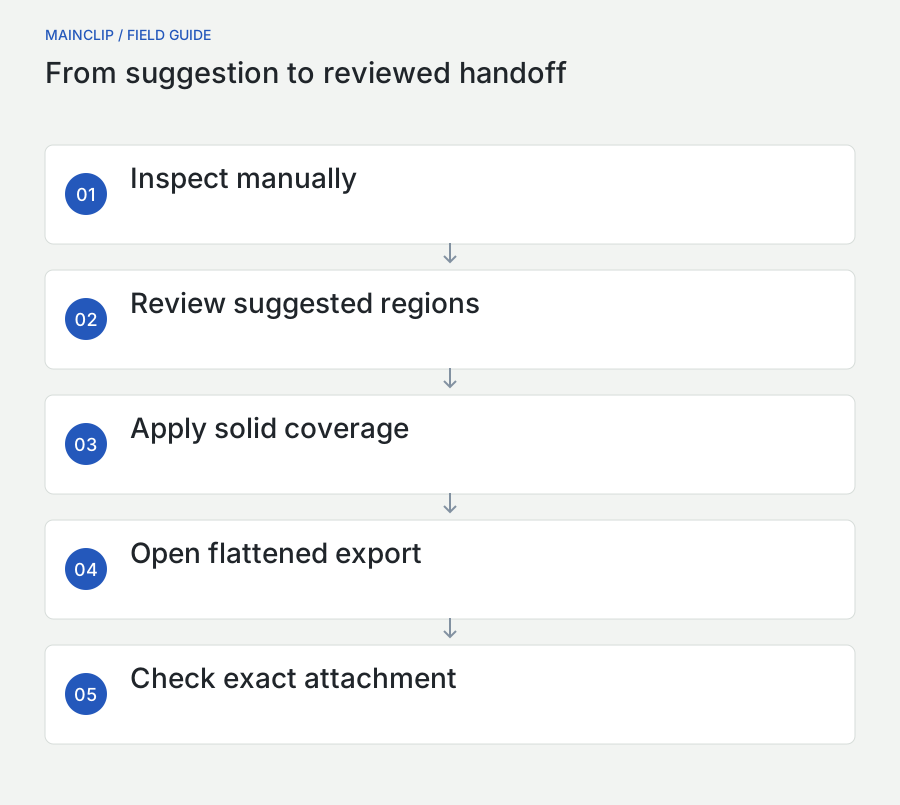
First make your own pass through the image and note the obvious private regions. Then use Suggest redactions as a cross-check. Review each proposed region and apply the selected suggestions. Inspect the result again, paying particular attention to material that is not text: profile images, maps, barcodes, QR codes, and visual identifiers. Add manual redactions where needed.
Use extra words for project-specific terms that a generic pattern cannot know. For example, an internal codename or fictional demonstration surname can be entered during a practice session to see how the review behaves. Do not assume that entering one name automatically covers every spelling, abbreviation, logo, or related detail. The image still needs a contextual review.
Understand what local OCR does and does not imply
Apple documents Vision text recognition as processing on the user's device. MainSnap uses Vision for its local recognition and does not send captures to a cloud OCR service. That describes where the recognition occurs; it does not establish that its result is correct. See Apple's Vision text-recognition documentation.
MainSnap recognizes the visible flattened image, so a covered region should not be treated as a source of still-available text in the current recognition result. Edits invalidate the editor's previous recognition result. Even so, text you copied earlier into another app remains a separate artifact. If you extracted a private address before redacting the image, review where that copied text went instead of expecting image edits to retract it.
Review the whole frame, including the boring edges
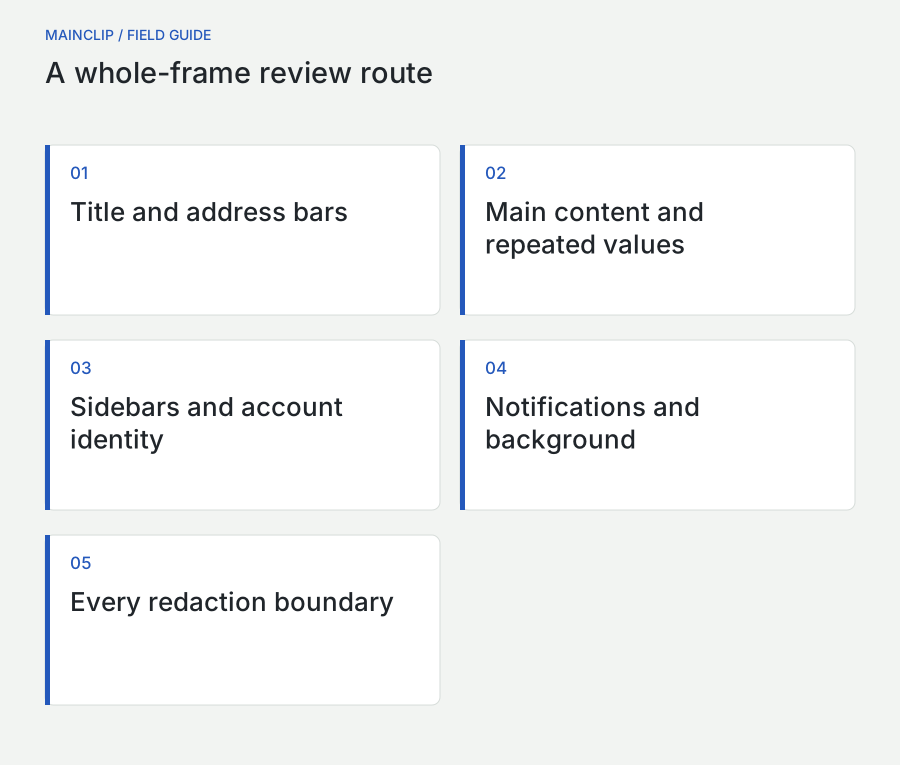
People naturally focus on the center of a screenshot because that is where the relevant error or control usually sits. Private information often lives around the edges. A browser title can include a document name. A sidebar can list recent customers. A menu bar can reveal an account or service. A desktop file can have a revealing filename even when its contents never appear.
Use a repeatable visual route. Start at the top left, scan the top edge, inspect the main content row by row, and finish with the lower corners and any background windows. Then inspect each redaction boundary. A fixed route is easier to repeat than a general instruction to “look carefully,” especially when reviewing several similar images.
| Region | Commonly overlooked detail | Useful action |
|---|---|---|
| Window and browser titles | Document names, workspace names, customer identifiers | Retain only the context the reader needs |
| Address bar | Private path segments or query values | Review the complete visible address |
| Sidebars and recent lists | Unrelated projects, people, or filenames | Hide or exclude the panel where practical |
| Account menus and avatars | Identity and organization details | Use a sample account or redact the region |
| Notifications and background windows | Messages unrelated to the screenshot's purpose | Recapture a clean state if possible |
| Charts and tables | Values that identify a real person or customer indirectly | Review meaning, not only obvious names |
Read combinations of details, not just individual fields
An image can identify a person without showing their full name. A distinctive role, a location, a date, and a unique transaction may be enough for someone familiar with the context. For ordinary public tutorials, using a synthetic example avoids many of these combinations. When real records are necessary, ask what a knowledgeable recipient could infer from the details that remain.
This does not require assuming that every generic interface element is secret. It requires matching the review to the actual audience. A screenshot shared inside a project team has a different context from the same screenshot published in a searchable article. State the intended audience during review so that people are evaluating the same handoff.
Follow the copies through your workflow
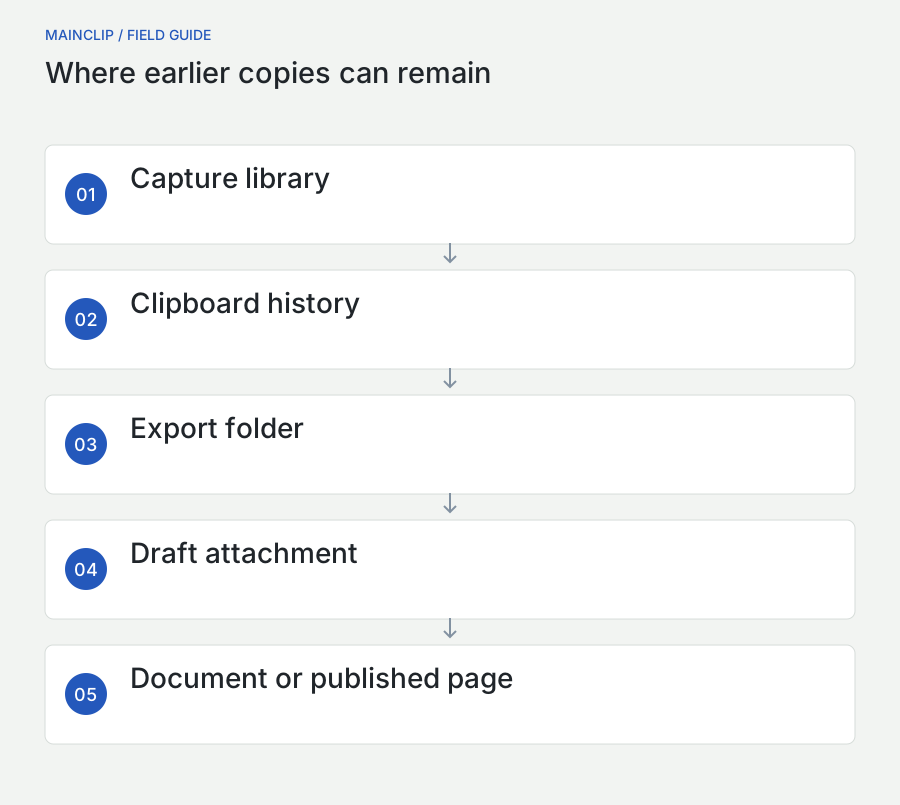
A screenshot can exist in several places within minutes: the capture library, an exported file, the clipboard, a draft message, a document, a synced folder, and a backup. Redacting one image does not automatically update all of those locations. The easiest way to manage this is to avoid spreading the unreviewed original unnecessarily and to use one clearly identified delivery file once the review is complete.
Suppose you capture a settings window, paste it into a draft email, then return to add a redaction. Exporting the corrected image does not alter the image already in the draft. Remove the old attachment and insert the reviewed one. Reopen the draft's attachment if necessary to confirm that the replacement happened. This ordinary sequence is a more plausible failure than a sophisticated attempt to reconstruct properly replaced pixels.
Clipboard histories deserve the same attention
The clipboard is a handoff mechanism, and clipboard managers may retain copied items according to their settings. If MainClip monitoring is enabled, review its history when managing a sensitive item you previously copied. MainClip stores supported clipboard history locally; it does not perform OCR, automatically redact images, or synchronize a corrected screenshot into every earlier paste.
Copying a harmless item afterward replaces the current clipboard content, but it is not a substitute for reviewing any history that retained the earlier item. Likewise, deleting a history entry does not remove a screenshot already pasted into a document. Treat the current clipboard, a history library, and external destinations as separate locations with their own controls.
Use a clear working area
For a multi-image job, keep a private working folder and a separate reviewed-output folder. Only the latter should supply attachments for the public article or customer message. Avoid names like “final-final-new.png” because they reveal uncertainty rather than resolve it. A short identifier linked to the section or support case is easier to verify.
At the end of the job, decide which originals are still needed and handle the rest through your normal retention process. Include any temporary delivery copies you created manually. MainSnap's sharing implementation removes old private temporary share copies on a later app launch after they age past its cleanup threshold; that behavior should not be described as immediate deletion at the moment a share sheet closes.
Keep image redaction and PDF redaction separate
A screenshot exported as a flattened image has a simpler content model than an arbitrary PDF. A PDF can contain text, images, annotations, and other document structures. Placing a black rectangle over a PDF page is not interchangeable with applying the application's dedicated PDF redaction operation. If your source is a real PDF and you need to distribute the document itself, use a workflow designed for that document.
Apple documents a Redaction Selection tool for PDFs in Preview and distinguishes it from ordinary markup shapes. Its guide also explains that saved annotations can remain editable. Those distinctions are why this article does not recommend treating any black shape in any file format as proof of permanent removal. Consult Apple's Preview PDF annotation and redaction instructions when working with an actual PDF.
When a screenshot is an appropriate derivative
If the recipient only needs to see one small visual detail from a document, a carefully prepared screenshot may be an appropriate derivative. Explain that it is an excerpt, preserve relevant context, and avoid presenting it as the complete source. Use a flattened output and review it like any other screenshot. This can make an ordinary support question much clearer.
If the recipient needs searchable text, complete pagination, original document structure, or authoritative records, screenshots may be the wrong format. Do not silently substitute a raster excerpt for a document workflow that requires more. The right choice follows the purpose of the handoff, not the convenience of the screenshot shortcut.
Do not use file conversion as a privacy shortcut
Changing a filename extension or exporting to another container is not a general sanitization procedure. Ask what content the export actually includes. MainSnap's current exports are deliberately based on the flattened visual image, but that implementation fact should not be generalized to every editor or converter. Inspect the capabilities and behavior of the tool you are actually using.
Similarly, a cropped view in one application may be a display choice rather than removal of underlying document content. For a screenshot, recapturing the intended area is straightforward. For a structured document, use the document application's appropriate removal or redaction function. Keeping these two cases distinct prevents advice for simple raster images from being misapplied to more complex files.
Verify the exact export before sending
The verification stage should be short enough to do consistently. Open the exported delivery file, not the project. Check its name and location. Inspect each covered region and enough of the surrounding area to spot missed fragments. Then read the whole image for anything you overlooked during editing. Finally, confirm that the image still explains what the recipient needs to understand.
For a routine screenshot, this may take less time than composing the accompanying message. For a public article containing many images, it deserves a deliberate pass through the complete set. A reviewer should know which audience the images are intended for and which details the author expected to remove. Without that context, reviewers can disagree simply because they are evaluating different purposes.
Use OCR as an additional check, never the only check
Running text recognition on the flattened export can help reveal a visible email address or missed line elsewhere in the picture. It cannot prove the absence of sensitive information. OCR can miss text and does not understand every visual identifier. Use it to supplement your inspection, especially in dense screenshots, while keeping the final judgment with the person preparing the handoff.
Do not upload an unreviewed image to an unfamiliar online service solely to check whether you removed private information. That changes the disclosure path before you have completed the review. A local workflow keeps this check closer to the source. If your organization has an approved review service, follow its established process rather than inventing a new destination under time pressure.
Verify the attachment, not only the folder
After attaching the file, check the message or submission form. Is there exactly one intended image? Did an older attachment remain below it? Did a drag operation add the original instead of the export? Did a document retain an earlier embedded screenshot on another page? These checks address the actual handoff and are worth doing even when the image preparation was technically correct.
If a delivery channel produces a preview, inspect it while remembering that the preview may be smaller than the file. Open the full attachment when needed. If an important detail is no longer readable, adjust the composition or provide a text explanation; do not remove a needed redaction merely to make the image easier to interpret.
Apply the workflow to three common situations
A software-support request
A fictional user sees an error when saving a project. The screen also shows their email address, a workspace name, a sidebar of unrelated projects, and a private path. The useful evidence is the error wording, selected save option, and visible application state. A focused capture excludes the sidebar. Solid redactions cover the remaining identifying fields without hiding the error.
The message includes the error code as actual text, the action that triggered it, and the app version. The screenshot provides visual context instead of carrying the entire explanation. Before sending, the user opens the exported image and checks the attachment. This approach gives support useful information while avoiding a large desktop capture filled with details the support team never requested.
A public product tutorial
An author wants to demonstrate organizing a list of customer records. Instead of redacting twenty real names, the author prepares fictional records with representative lengths and states. The tutorial can now show realistic spacing, empty values, and a long label without exposing real customers. One remaining account identifier in the app chrome is covered before export.
The caption makes clear that the data is illustrative. The author keeps the sample dataset for future screenshots so later revisions stay consistent. This is more maintainable than repeatedly disguising production data. It also makes the tutorial easier to localize because names and values can be chosen to fit the instructional purpose rather than inherited from an unrelated real incident.
An internal comparison shared outside the team
A team compares two interface states using side-by-side images. Internally, both contain project names that the team recognizes. Before sending the comparison to an external partner, a reviewer checks both halves independently. A redaction applied only to the first image would leave the same name visible in the second. Captions and filenames are reviewed too.
The final comparison retains the layout difference and labels the two states clearly. Any sensitive value mentioned in the surrounding prose is removed or replaced consistently. The reviewed combined image is exported as a new delivery artifact. This scenario illustrates why a “before and after” composition should be checked after assembly, even when its source images were reviewed separately.
Build a small team practice that people will actually follow
A useful team rule fits the way people already work. It might say: use sample data for public tutorials, capture the smallest useful area for support, apply solid redactions, and attach only reviewed flattened exports. Give people a short example of a good result and a list of common edge details to inspect. A clear practice is easier to adopt than a long generic warning that nobody reads before a quick screenshot.
Assign review according to exposure and complexity. A routine internal screenshot may need a self-check. A public guide with dozens of customer-like examples may benefit from another person reviewing the final assets. The review should happen on the exported images and surrounding text, because that is what the audience will receive. Editing the source afterward should trigger a new check of the changed outputs.
Practice with deliberately imperfect sample images
Create a harmless training screenshot containing a fake email address, a sample account number, a visible browser tab, a mock notification, and a project name in a title bar. Ask a colleague to prepare it for a fictional public tutorial. Compare what each person noticed. The purpose is to improve the checklist and framing choices, not to score people on how many boxes they drew.
Include one detail that looks private but is actually necessary to the explanation, such as the exact wording of a synthetic error. This encourages judgment instead of indiscriminate masking. Include another detail that is easy to overlook, such as a name in a filename. A ten-minute exercise with invented data can reveal weaknesses in the workflow without putting real information at risk.
Record the purpose of unusual redactions
When an image has a surprising amount of hidden material, add a short internal note explaining why it was captured that way. Perhaps the surrounding layout is needed to reproduce a bug, or the exact state cannot be recreated with sample records. The note helps future editors decide whether a fresh synthetic image would be better when the article is updated.
Do not place private explanations in the public filename or alt text. A redacted image named after the hidden customer defeats part of the purpose. Keep public descriptions focused on what the image demonstrates. The same principle applies to captions, document headings, and the message accompanying the attachment.
Review names, descriptions, and metadata without making unsupported promises
Image formats can carry information beyond visible pixels. For example, the PNG specification allows ancillary information, including textual data. That is a format capability, not evidence that every PNG contains private metadata. Avoid both extremes: do not assume every screenshot exposes a hidden dossier, and do not promise that changing format strips everything automatically. See the W3C PNG specification for the format's structure.
For an ordinary screenshot, start with the information you directly control: the filename, the caption, the destination, and the visible content. Use a filename that describes the instruction rather than the person whose information was removed. If metadata removal is a formal requirement in your workflow, use an established inspection and sanitization process appropriate to that requirement rather than relying on a general screenshot article.
Alt text should explain the useful image
When publishing an image on a website, write alternative text that communicates the relevant visual information. For example, describe the settings panel with the export option selected and account details removed. Do not reproduce a redacted address in alt text because it was present in the original. The surrounding explanation should remain useful to readers who cannot inspect the picture.
Keep internal review notes separate from public descriptions. A content system may expose fields differently than expected, so check the final page rather than only the editing form. This is the same artifact-focused principle used for the image itself: review what the audience receives, including its text context.
Prepare several screenshots without losing track of review
A batch of screenshots creates a different problem from a single image: the author can remember reviewing the topic while overlooking one particular file. Make a simple inventory before attaching or publishing the set. Give each image a stable descriptive name, its intended destination, and a review state. The inventory does not need to be a complex system. A short list beside the article draft is enough if it points to the exact files being used.
Review each image independently, then review the assembled result. A multi-step guide may repeat the same private value in a later screen after it disappeared from the first one. A combined image may introduce a filename in its caption. A presentation may retain a hidden duplicate slide containing the original. The second review checks the composition and its context, rather than assuming the individual image checks automatically cover everything around them.
Use meaningful status names
Distinguish “captured,” “edited,” and “reviewed for this destination.” An edited image may still need review, and an image reviewed for an internal discussion may not be suitable for public publication. Avoid a single vague status such as “done” when several people are preparing the assets. State the audience directly so the next person knows what the review actually established.
For example, a four-image support package might contain an overview, an error detail, a configuration panel, and the result after retrying. The overview could be ready for the external support team while the configuration panel still needs an account identifier removed. Tracking the files individually prevents the broad statement “the support screenshots are redacted” from concealing that unfinished item.
Handle a changed screenshot as a new output
If someone recaptures a screen to improve readability, it needs a fresh privacy check. The new capture may include a different account menu, another open tab, or a notification that was absent before. Do not transfer a review status simply because the new image has the same title or demonstrates the same step. The relevant evidence is the new exported artifact.
Likewise, resizing or recomposing reviewed images can expose mistakes in framing or make a small uncovered fragment harder to notice. Keep the reviewed source available, generate the new derivative, and inspect that derivative at a useful size. This is a focused check of the changed file, not a requirement to restart the entire project every time a caption moves.
Leave a handoff another person can understand
When passing the assets to a publisher or colleague, identify the approved-output folder and explain which images belong in which section. State that editable originals remain separate. Ask the recipient to use the named outputs rather than hunting through a collection of drafts. A clear handoff reduces accidental substitution and saves the recipient from guessing which of several near-identical images is current.
After publication, inspect the actual page or delivered package. Confirm that the intended images appear, that their public descriptions contain no removed details, and that a full-size link points to the reviewed derivative. This final check closes the route from capture to audience. It is also an opportunity to catch ordinary presentation problems such as a broken image, an unreadable label, or an incorrect caption.
If you discover that an earlier, unreviewed image was attached, treat that as a delivery correction rather than an image-editing problem. Remove or replace it where the destination permits, identify the reviewed replacement clearly, and follow the relevant communication process for the people involved. Do not assume that changing a local filename or redacting your working capture alters an image already received elsewhere.
Keep the correction factual. Identify which artifact was wrong and which one supersedes it without reproducing the private detail in the correction itself. For an internal draft that nobody received, replacing the attachment and checking the final message may resolve the issue. For material already distributed, the available actions depend on the destination and situation. The useful lesson for future work is to locate the point where the wrong copy entered the handoff and improve that specific step, such as keeping only reviewed outputs in the attachment folder.
Practical questions about redacting Mac screenshots
Can someone remove a black box from my screenshot?
They may be able to move or delete an annotation in an editable project. In a correctly flattened raster export where covered pixels have been replaced, that editable annotation is not available as a separate layer. The remaining risks include missed content, sending the wrong file, and separate copies elsewhere. Verify the actual export and avoid making a universal claim about every file that happens to show a black rectangle.
Is blurring enough for an email address?
Use solid opaque coverage when the address should not be disclosed. Blur is an appearance effect whose result depends on its strength and the source. A dedicated solid redaction gives you a clearer condition to inspect: the entire address region is replaced in the delivery image.
Does redacting a capture remove the original from MainSnap?
No. MainSnap's editable local capture retains the original for revision. Flattened exports replace the covered pixels in the output. If the local original is no longer needed, handle the capture, recovery copy, and any separately exported files through the appropriate deletion controls. These are separate actions with separate purposes.
Can automatic detection find everything private?
No. Text recognition and matching rules can miss information or suggest harmless content. They also cannot decide every contextual question about what your audience should see. Use suggestions to support a human review of the complete image and its surrounding text.
What is the most useful habit to adopt today?
Open the exact exported attachment before sending it. Check the whole frame, every redaction boundary, and the filename. That small habit connects the work in the editor to the artifact the recipient actually receives, which is where the quality of the redaction ultimately matters.